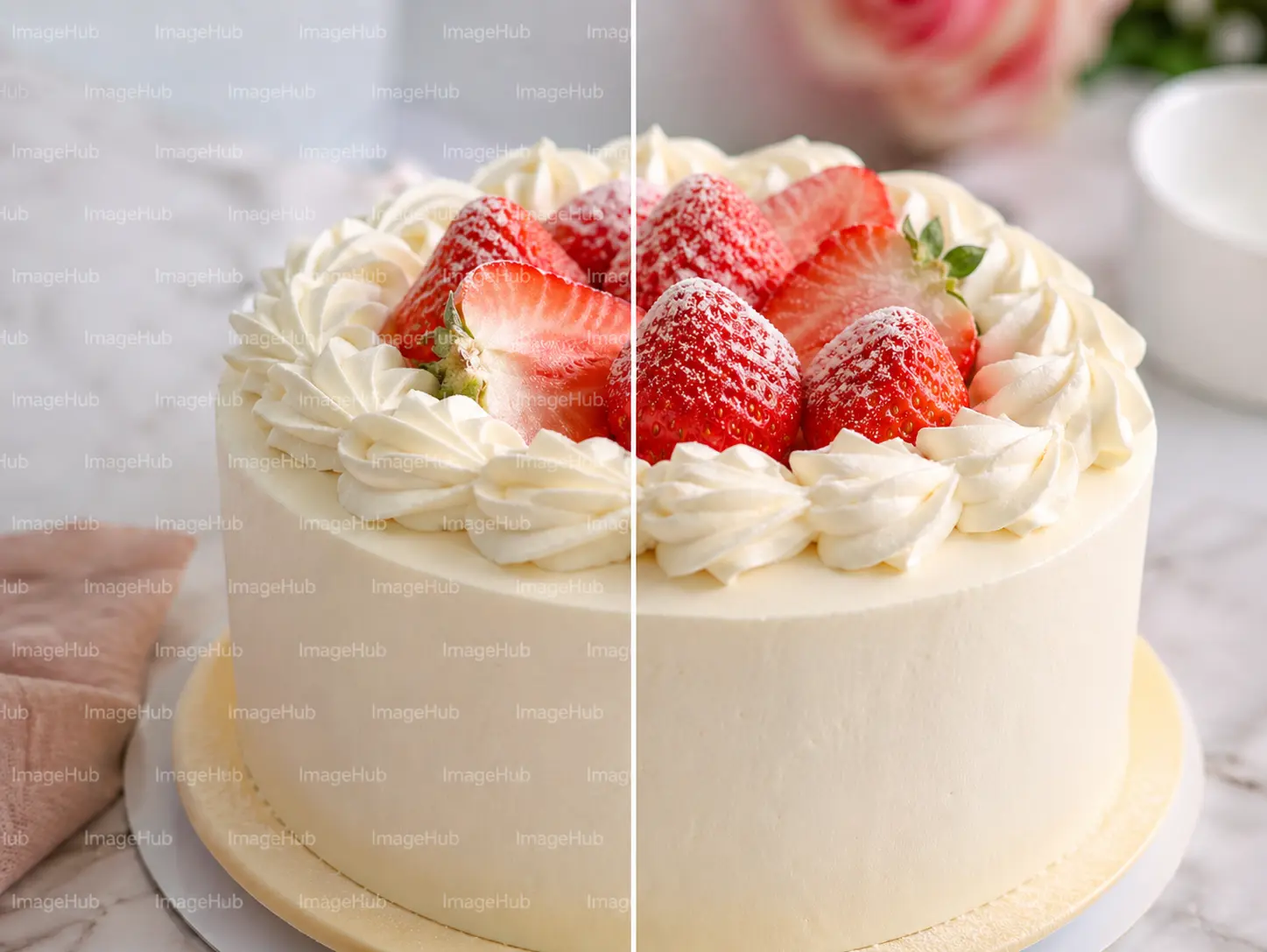
Source image

Cleaned result

Text Overlay Cleanup
Clean a large text overlay while keeping the subject and image structure readable.
Image 2 cleanup tool for owned images and overlays
Upload an image you own or have permission to edit, then clean unwanted watermarks, text overlays, corner marks, draft stamps, or export labels from the picture.
This cleanup tool uses one uploaded picture as the source, removes the selected overlay target, and fills the cleaned area naturally while preserving the main subject, layout, color, and context.
Upload one source image, choose the focused tool mode, then generate a cleaner AI-edited result.
Source image
RequiredMode
Clean unwanted text overlays, old captions, draft copy, and labels from owned images.
Output shape
0/800
Showcase
Review example outputs from the image watermark remover workflow before running your own file.
Source image

Cleaned result

Clean a large text overlay while keeping the subject and image structure readable.
Source image

Cleaned result

Remove a smaller visible mark while preserving the surrounding texture and lighting.
Source image

Cleaned result

Clean a proof-style stamp or repeated overlay from an authorized image.
This cleanup page is useful when the image is yours, but an unwanted overlay is still blocking the final asset. You may have a draft export label, an old campaign mark, a sample stamp, a temporary corner logo, or a text overlay that no longer belongs in the picture. The workflow stays narrow: upload one authorized image, choose the cleanup target, and generate a cleaner version for review.
The workflow is different from a generic retouching request. An AI watermark remover should not redesign the whole picture. It should remove watermark from image areas carefully, then repair the covered texture, light, color, and background so the result still feels like the same image. That makes the page useful for creators, ecommerce teams, marketing teams, agencies, and product teams working with owned or licensed visuals.
Text Overlay mode is best when you need to remove text from image drafts, old captions, placeholder words, or visible sample labels. Corner Mark mode is better for small corner watermarks, export tags, or campaign marks that sit away from the main subject. Stamp Cleanup mode targets semi-transparent proof marks, repeated draft stamps, and sample overlays. The clearer the mode, the easier it is for the cleanup tool to protect the rest of the picture.
Use the optional instruction field to describe the target directly. Good notes include remove the lower-right mark only, keep the product label unchanged, preserve the face, keep the wall texture natural, or do not change the package text. These constraints help the model repair marked areas without turning a cleanup job into a full redesign.
The best source for an image watermark remover has a clear separation between the mark and the important subject. A small corner label on a plain background is easier than a watermark across a face, legal label, product logo, or complex pattern. If the mark covers important text, review the result carefully. The tool can clean and infer missing texture, but exact typography and legal copy should always be checked by a person.
Use this page only for images you own, created, licensed, or have permission to modify. That boundary matters. The goal is not to strip ownership signals from someone else’s work; the goal is to clean authorized images, remove text from image drafts, update campaign assets, and repair overlays that no longer belong. After generation, compare the cleaned result with the source and confirm the repaired area looks natural before publishing.
Each public tool page keeps the real generator close to the product promise, so visitors can understand the capability and try it without hunting through the app.
Built for photos, graphics, and campaign assets you created, licensed, or have permission to modify.
Choose text overlay, corner mark, or stamp cleanup to guide the edit precisely.
The AI watermark remover fills the cleaned region with matching background, texture, lighting, and perspective.
Keep people, products, scenes, packaging, colors, composition, and important details stable.
Use these starting points to match the page to concrete creation tasks.
Clean a small campaign label before updating an authorized image for a new layout.
Remove sample stamps or export labels from image drafts you control.
Clear outdated captions or placeholder words before adding final design copy.
Keep the workflow simple: describe the output, choose the model settings, run a draft, then refine the strongest direction.
Step 1
Choose an image you own, created, licensed, or have permission to edit.
Step 2
Select Text Overlay, Corner Mark, or Stamp Cleanup based on the visible mark.
Step 3
Describe what to remove and what must stay unchanged, especially labels or faces.
Step 4
Inspect the repaired area and confirm the image still matches the original context.
Quick answers for choosing the right settings before generating.
No. Use the Image Watermark Remover only on images you own, created, licensed, or have permission to modify.
It can clean text overlays, corner marks, draft stamps, proof labels, export marks, and unwanted overlays from authorized images.
The prompt asks the edit to preserve the subject, composition, colors, product details, faces, and background while repairing only the marked area.
Yes. Text Overlay mode is designed for old captions, placeholder words, sample labels, and draft copy on images you can edit.
The default 1K run uses the same 3-credit image tool rule as other Image 2 image cleanup pages.