
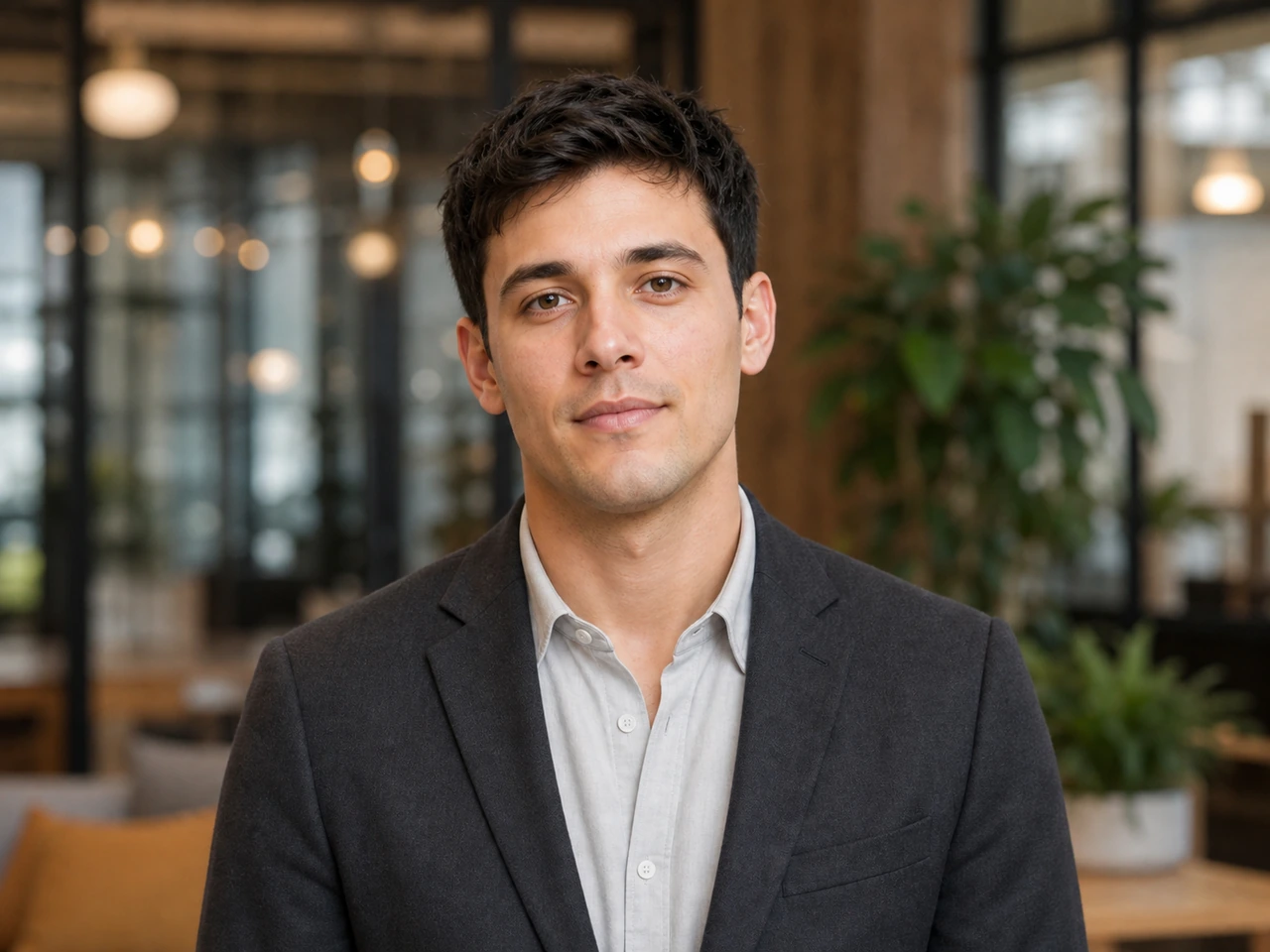
Source portrait
Professional result
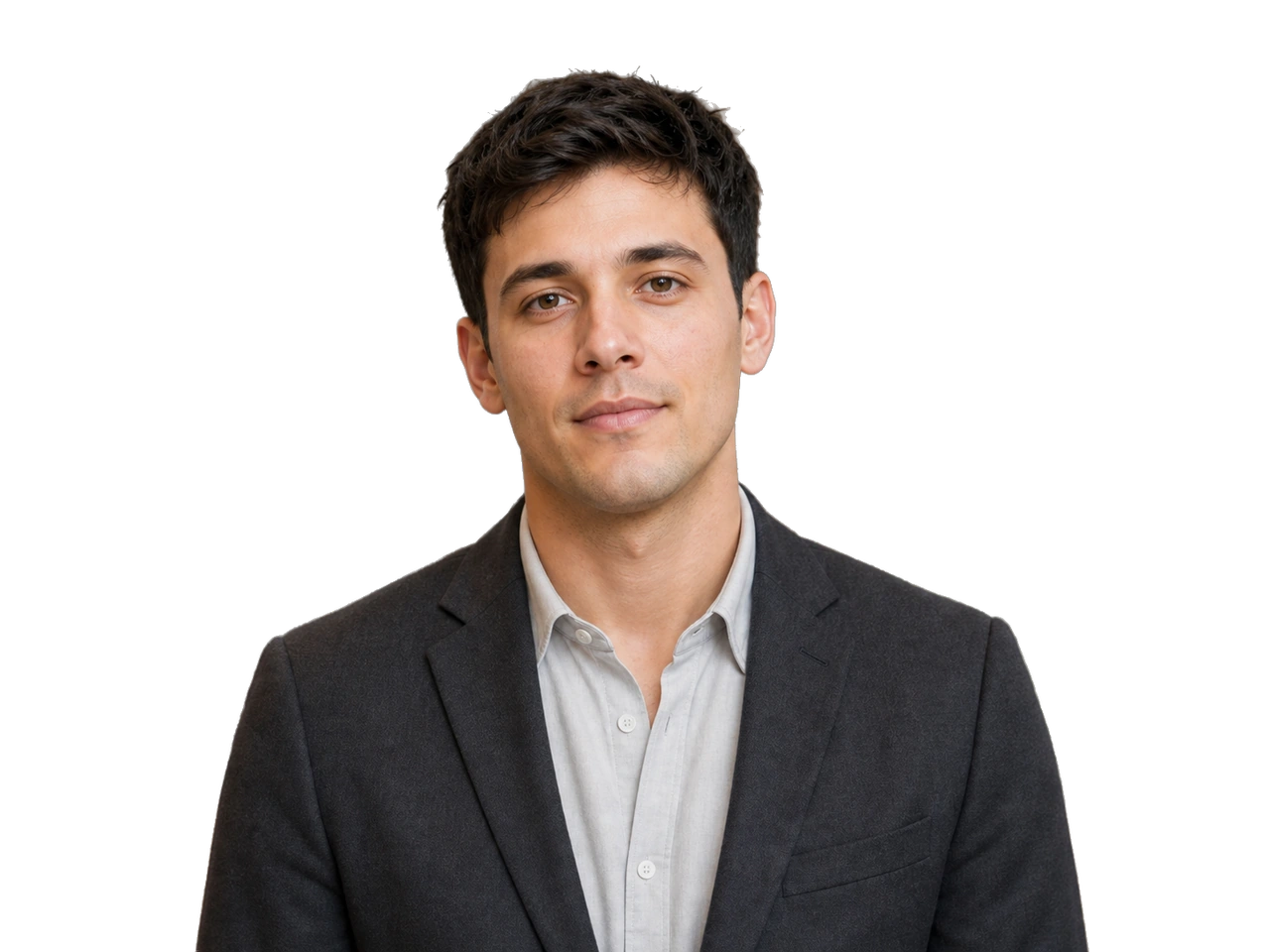
LinkedIn Profile Example
Turn a casual portrait into a square professional headshot with clean lighting.
Prompt focus: preserve identity, expression, hairstyle, and realistic skin texture.
Image 2 portrait tool for professional profiles
Upload a selfie or portrait and create a clean profile photo for LinkedIn, resumes, founder profiles, speaker bios, and business pages.
The AI Headshot Generator keeps the uploaded face as the identity source, then improves lighting, framing, clothing polish, and background for a realistic business-ready profile image.
Upload one source image, choose the focused tool mode, then generate a cleaner AI-edited result.
Source image
RequiredMode
Create a polished profile photo for LinkedIn, resumes, and recruiting.
Background
Use a clean studio background with soft professional lighting.
0/800
Showcase
Review example outputs from the ai headshot generator workflow before running your own file.
Source portrait
Professional result
Turn a casual portrait into a square professional headshot with clean lighting.
Source portrait
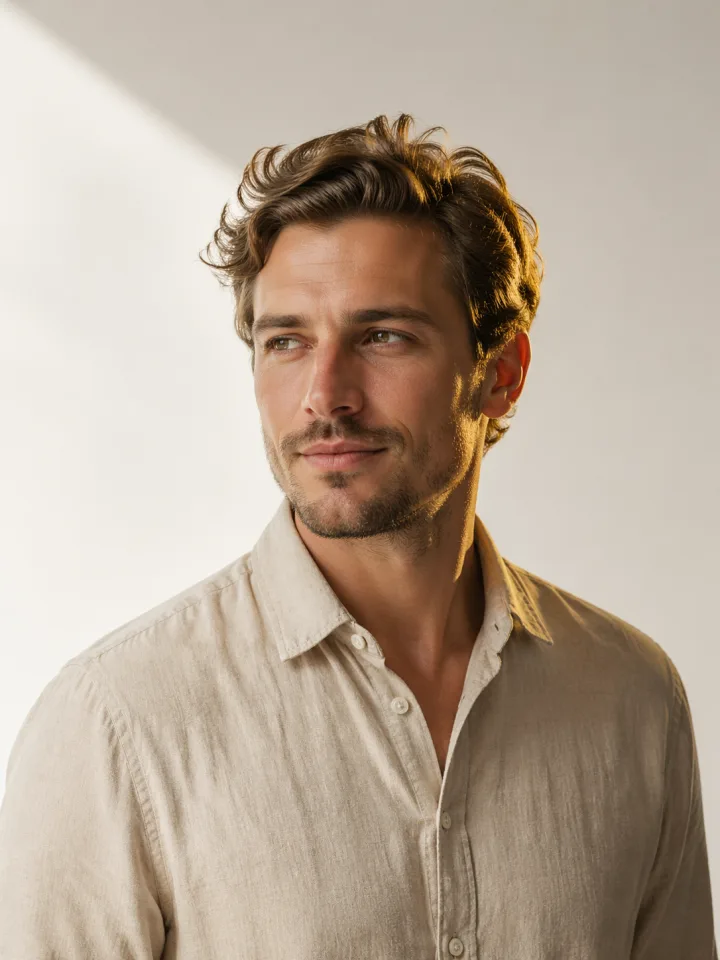
Founder profile result
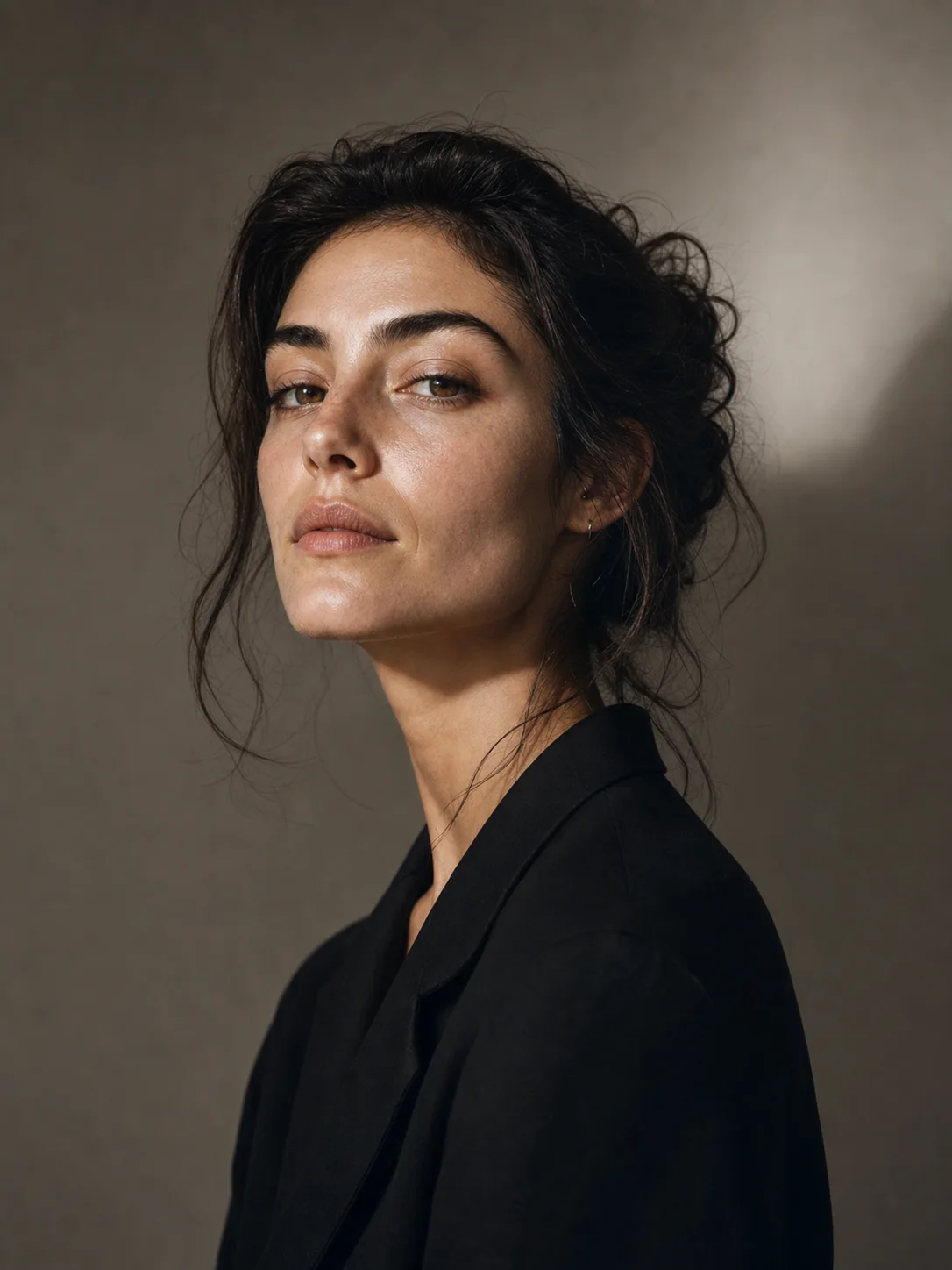
Create a confident business portrait for a founder bio or speaker card.
Source portrait
Creative profile result
Keep the face recognizable while giving the portrait a cleaner finish.
An AI Headshot Generator should never treat a face as a blank portrait. The strongest headshot generator starts with identity preservation: same face structure, age, skin tone, hairstyle, expression, glasses, and defining features. It uses the uploaded portrait as the source of truth, then improves the professional headshot finish for LinkedIn, resumes, founder pages, and business profiles.
That makes this workflow different from a generic portrait filter. The goal is a realistic profile image, not a plastic beauty edit. The prompt improves lighting, framing, clothing polish, and background without artificial skin, watermarks, or text.
LinkedIn mode is the safest LinkedIn headshot generator setting for career profiles, resumes, recruiting pages, and job applications. It favors clean lighting, a head-and-shoulders crop, natural eye contact, and a neutral business look. Founder mode feels more confident for an about page, press kit, team profile, or speaker bio. Creative mode is warmer for portfolios and public social accounts.
Background choice matters too. Neutral Studio gives the most classic professional headshot result. Soft Office feels business-ready without showing a distracting room. Warm Indoor stays approachable. Clean Gray is useful for a resume-ready output. For better results, add a short note such as keep my glasses, use a navy blazer, keep my hairstyle, or avoid changing the smile.
The best input for a headshot generator is a clear single-person portrait. The face should be visible, not blurred, hidden by shadows, or cropped too tightly. A phone photo can work if the person is recognizable. Low-resolution files, group photos, heavy filters, sunglasses, and face-covering objects make identity preservation harder.
After the AI Headshot Generator finishes, inspect the output before using it publicly. Check whether the face still looks like the same person, hair and glasses stayed accurate, skin texture looks natural, and clothing fits the channel. If the result changes too much, use a clearer source image or add a direct instruction.
Each public tool page keeps the real generator close to the product promise, so visitors can understand the capability and try it without hunting through the app.
Preserve face identity, age, skin tone, structure, hairstyle, and expression.
Choose LinkedIn, Founder, or Creative for the right profile context.
Pick neutral studio, soft office, warm indoor, or clean gray backgrounds.
Add details like keep my glasses, use a navy blazer, or keep my hair.
Use these starting points to match the page to concrete creation tasks.
Create a square professional headshot for career profiles.
Polish a portrait for an about page, press bio, or team page.
Create a clean profile image for a newsletter, portfolio, or social profile.
Keep the workflow simple: describe the output, choose the model settings, run a draft, then refine the strongest direction.
Step 1
Use a clear selfie or portrait with the face visible.
Step 2
Pick LinkedIn, Founder, or Creative for the destination.
Step 3
Use neutral studio, soft office, warm indoor, or clean gray.
Step 4
Check identity, hairstyle, expression, skin texture, and clothing.
Quick answers for choosing the right settings before generating.
It turns one selfie or portrait into a professional headshot for LinkedIn, resumes, founder profiles, speaker bios, team pages, and business profiles.
No. Built-in instructions handle the portrait edit. You can add a note to protect glasses, hairstyle, clothing color, or expression.
The prompt asks the edit to preserve face identity, age, skin tone, facial structure, hairstyle, and expression. Review the result before using it publicly.
Use a clear single-person selfie or portrait with the face visible. Avoid blurred, dark, filtered, or crowded group photos.
Yes. LinkedIn mode is designed for professional profile photos, resumes, job applications, and recruiting pages.
The default 1K run uses the same image generation credit rules as other Image 2 image tool pages.