Remove Background

AI remove background tool for clean subject isolation

Remove Background

Use Image 2 to remove background clutter, isolate the main subject, and create a clean white, light-gray, cutout-style, or studio image for product and portrait workflows.

The remove background page is built for fast commercial work: upload one source image, choose the subject mode, choose the new background style, and generate a clean result.

Source and settings

Upload one source image, choose the focused tool mode, then generate a cleaner AI-edited result.

Source image

Required
Drop images here or click Image.
0/1 reference imagesJPG, PNG, WebP up to 30MB

Mode

Isolate the subject with clean edges on a neutral canvas.

Background

Place the subject on a clean white background.

0/800

Session historyImages generated in this session will appear here.

Showcase

Remove Background Showcase

Review example outputs from the remove background workflow before running your own file.

Examples from the tool workflow

Original image

Professional Headshot Cutout Original image

Clean background result

Professional Headshot Cutout Clean background result

Professional Headshot Cutout

Remove a busy portrait background and prepare a clean profile image for resumes, portfolios, and creator profiles.

Prompt focus: preserve hair, face identity, clothing edges, and natural studio lighting.

Original image

Ecommerce Product Cutout Original image

Clean background result

Ecommerce Product Cutout Clean background result

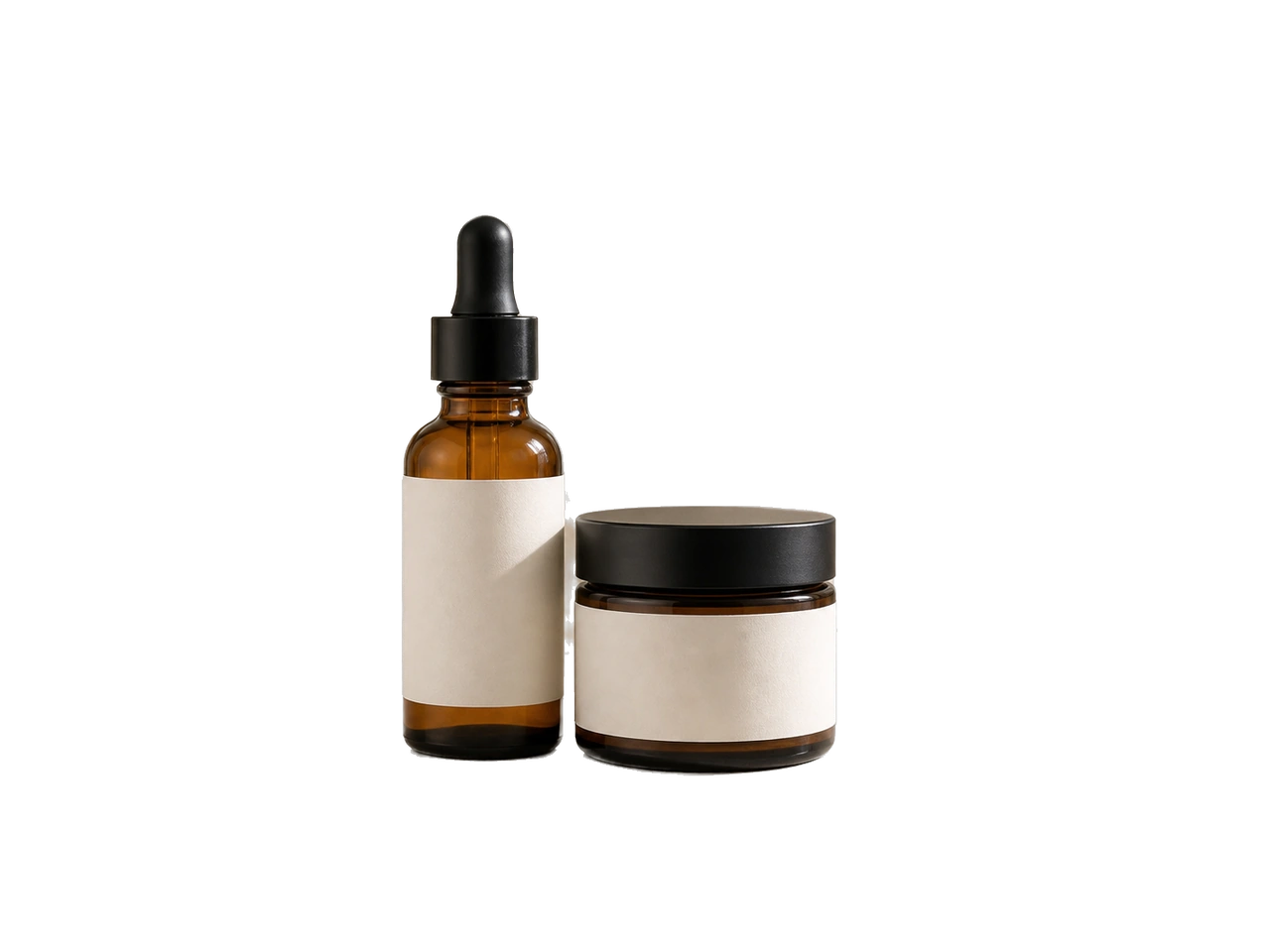
Ecommerce Product Cutout

Turn a product photo into a cleaner store-ready visual with fewer distractions around the item.

Prompt focus: keep product geometry, label details, realistic shadow, and material texture stable.

Original image

Social Content Cutout Original image

Clean background result

Social Content Cutout Clean background result

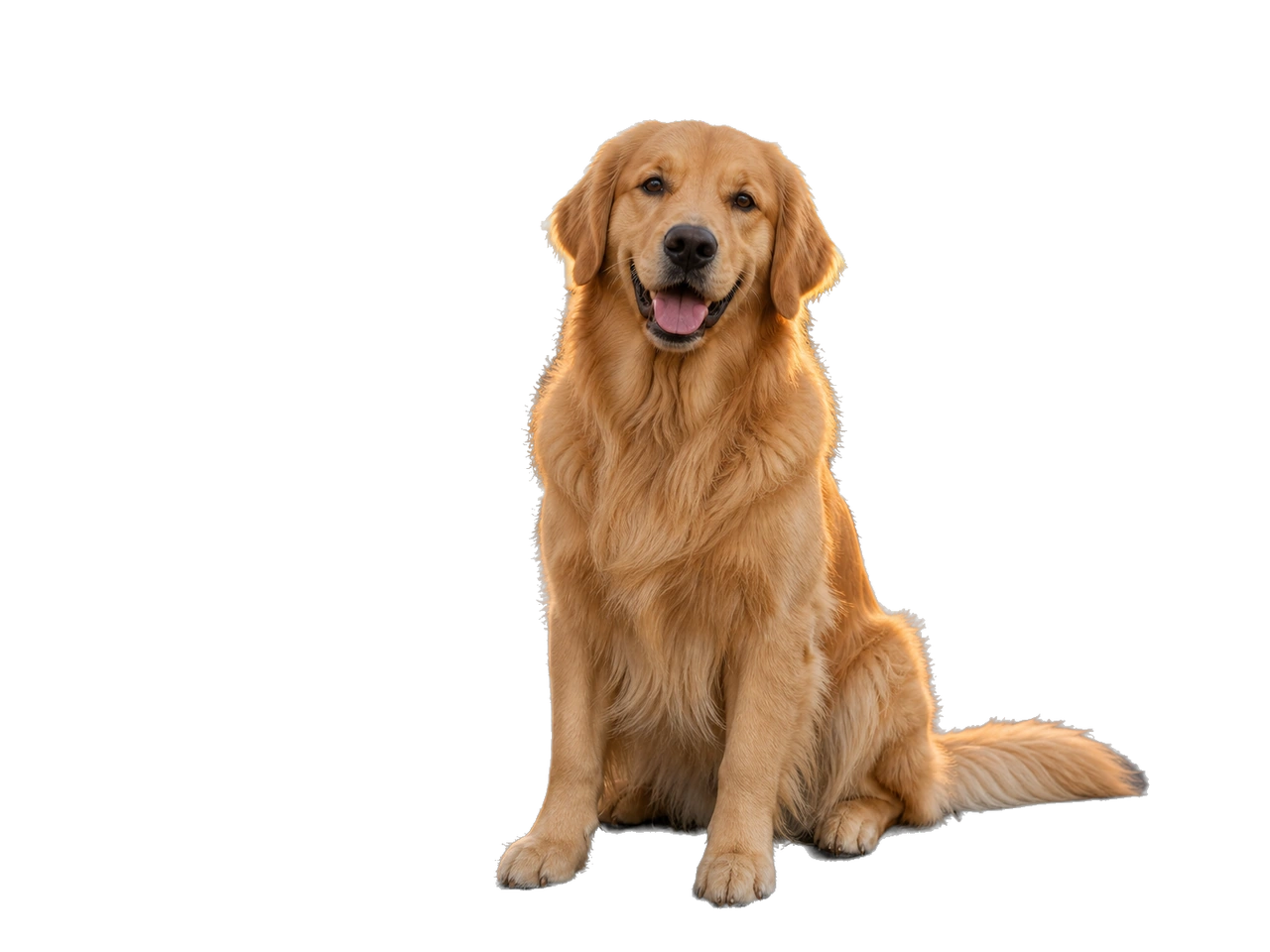
Social Content Cutout

Isolate the subject from a crowded image so the result can be reused in posts, thumbnails, and ads.

Prompt focus: keep the subject edge crisp while simplifying the surrounding scene.

Original image

Design Asset Cutout Original image

Clean background result

Design Asset Cutout Clean background result

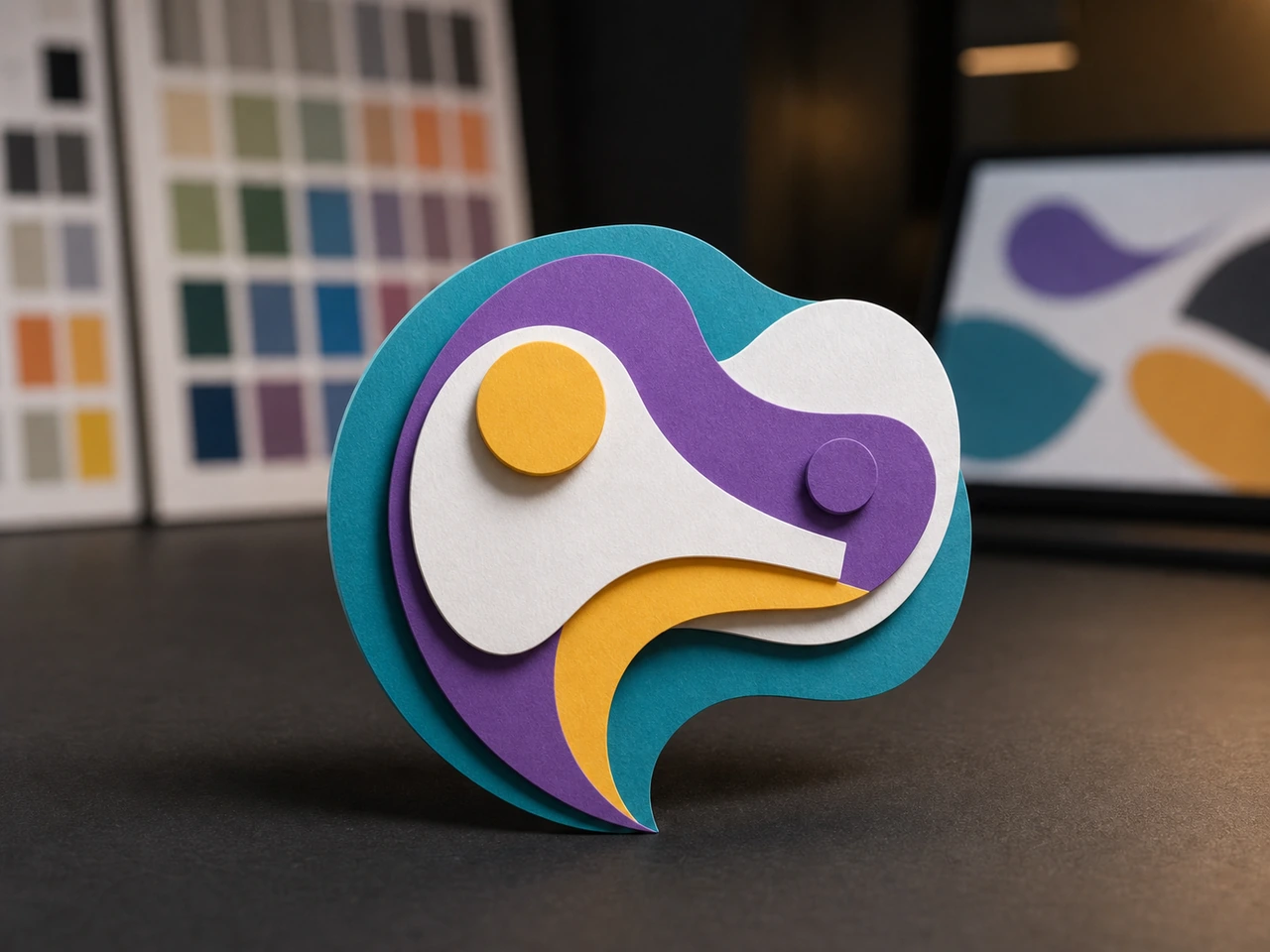
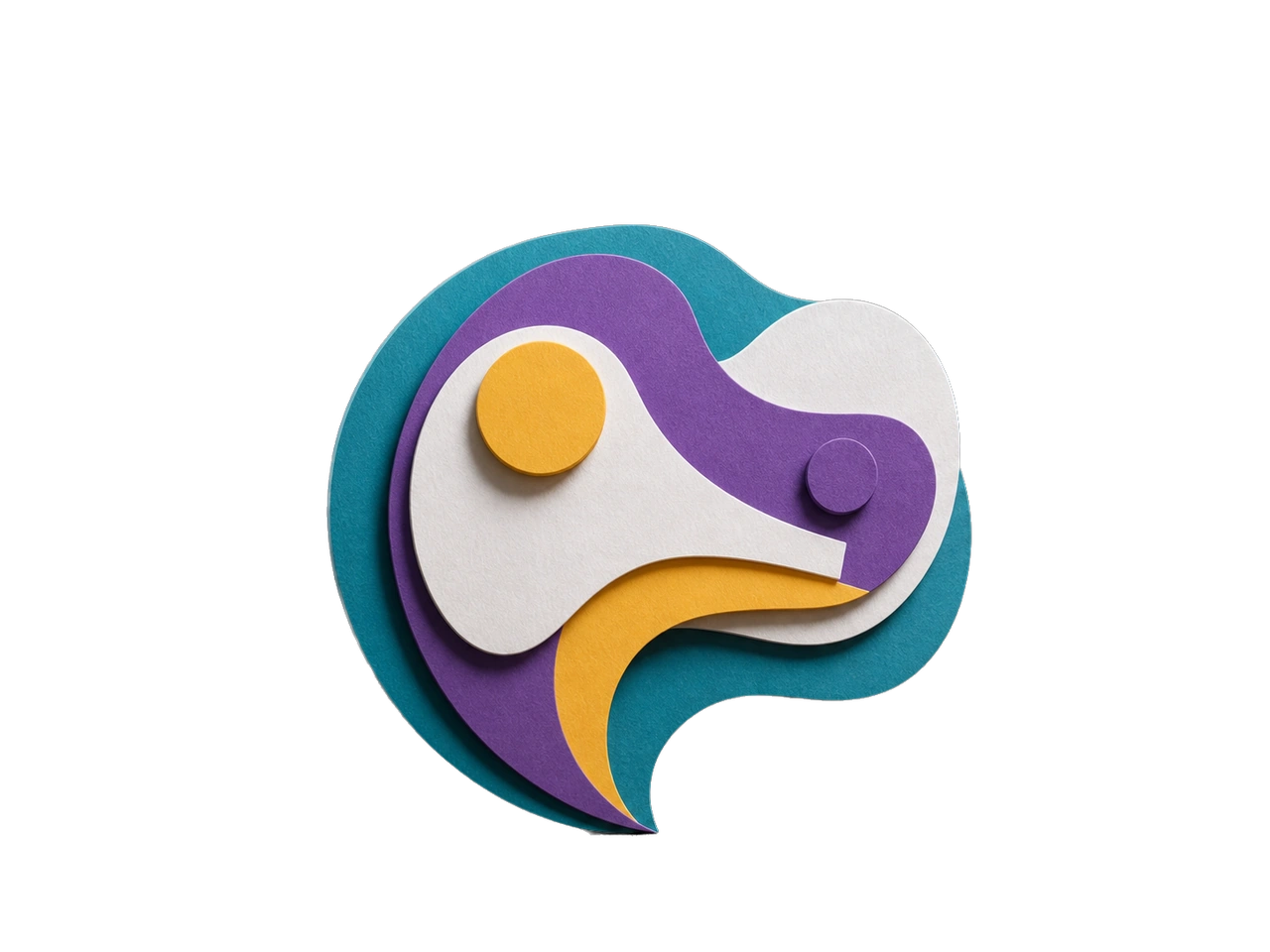
Design Asset Cutout

Create a reusable graphic asset that can move into collages, decks, posters, and marketing layouts.

Prompt focus: produce a clean edge, simple background, and flexible commercial composition.

Why background cleanup workflows matter

A strong remove background workflow turns a distracting image into a usable asset. Product teams often receive photos shot on desks, floors, shelves, or busy rooms. Creators may have portraits with messy walls, random people, or lighting that pulls attention away from the subject. Marketers may need a clean object for a thumbnail, comparison chart, hero graphic, or ad layout. The Image 2 cleanup page is built for those practical moments: upload one source, isolate the subject, and create a cleaner image for the next step.

When people search for remove background, they usually want a result that looks clean without spending time in a manual editor. This tool focuses on the subject first. Product mode protects shape, label details, material, and shadow. Portrait mode protects hair, face identity, clothing, and natural edges. Cutout mode is useful when the subject is an object, accessory, food item, package, or mixed scene. The goal is not to create a new concept; the goal is to remove background distractions while keeping the important subject recognizable.

Choosing the right remove background setting

The background choice should match the final use. White is best when you need a clean ecommerce or catalog look. Light Gray is useful when a pure white surface feels too flat and you want a softer studio feel. Cutout Style is best when you want the cleanest possible edge and plan to place the subject into another design later. Studio works when the subject needs a simple commercial scene with a controlled shadow. Each remove background mode gives the tool a clearer target, which helps avoid messy edges and awkward replacement areas.

Source quality still matters. To remove background cleanly, start with an image where the subject is not completely blended into the background. Hair, reflective products, transparent objects, and very small labels are harder than simple shapes. If you need a product label or face to stay accurate, write that instruction before generating. If the first result changes the subject too much, try a simpler background mode. The remove background page is intentionally focused so you can make quick passes and inspect the result without navigating a full design suite.

Best use cases for remove background

Ecommerce is the obvious remove background use case. Sellers can clean up a product photo before placing it in a listing, banner, or comparison image. Founders can isolate a device, package, book, or physical prototype for a landing page. Creators can clean a portrait for a profile image, course cover, newsletter header, or social thumbnail. Agencies can prepare client assets for ad layouts without waiting for a perfect studio reshoot. In each case, remove background work saves time by turning a real source photo into a more flexible commercial asset.

This first version of remove background creates clean AI-generated outputs rather than a guaranteed transparent PNG with an alpha channel. That is important to understand. It is excellent for white, gray, cutout-style, and studio replacements, but final transparent export should use a dedicated background-removal API later. The page is already structured so that upgrade can happen cleanly. For now, use remove background when you need fast subject isolation, cleaner product presentation, and a practical image that can move into ads, product pages, thumbnails, and brand materials.

What this tool handles

Each public tool page keeps the real generator close to the product promise, so visitors can understand the capability and try it without hunting through the app.

Subject isolation

The edit focuses on removing the original background while preserving the main subject and edge detail.

Product and portrait modes

Choose whether the source is more like an ecommerce product, a portrait, or a general cutout.

Clean replacement backgrounds

Use white, light gray, cutout-style, or simple studio backgrounds for practical commercial outputs.

Future API-ready boundary

The page is separated from the generator shell, so a dedicated transparent-background API can be swapped in later.

Example workflows

Use these starting points to match the page to concrete creation tasks.

Ecommerce product

Remove a cluttered desk or room background and place the item on white or light gray.

Profile image

Clean up a portrait background while keeping hair, face, and clothing edges natural.

Marketing asset

Prepare a subject for thumbnails, ad layouts, comparison graphics, and product pages.

How to use it

Keep the workflow simple: describe the output, choose the model settings, run a draft, then refine the strongest direction.

Step 1

Upload the photo

Use a clear source where the main subject can be separated from the background.

Step 2

Choose subject mode

Pick Cutout, Product, or Portrait so the edit protects the right details.

Step 3

Pick a clean background

Select white, light gray, cutout-style, or simple studio output.

Step 4

Generate and inspect edges

Open the result and check hair, product labels, shadows, and fine edges before downloading.

Frequently asked questions

Quick answers for choosing the right settings before generating.

Does this export a transparent PNG?

Not yet. This first remove background version creates clean AI-generated background-removal outputs. True alpha-channel transparent PNG export should use a dedicated background-removal API later.

What backgrounds can I choose?

The remove background tool supports white, light gray, cutout-style, and simple studio backgrounds.

Does it preserve hair and product edges?

The remove background workflow asks the edit to preserve fine edges, but you should inspect detailed hair, labels, and reflective product surfaces before publishing.

How much does a default run cost?

The default remove background run costs 3 credits per output.