
Source photo

Pixel art result
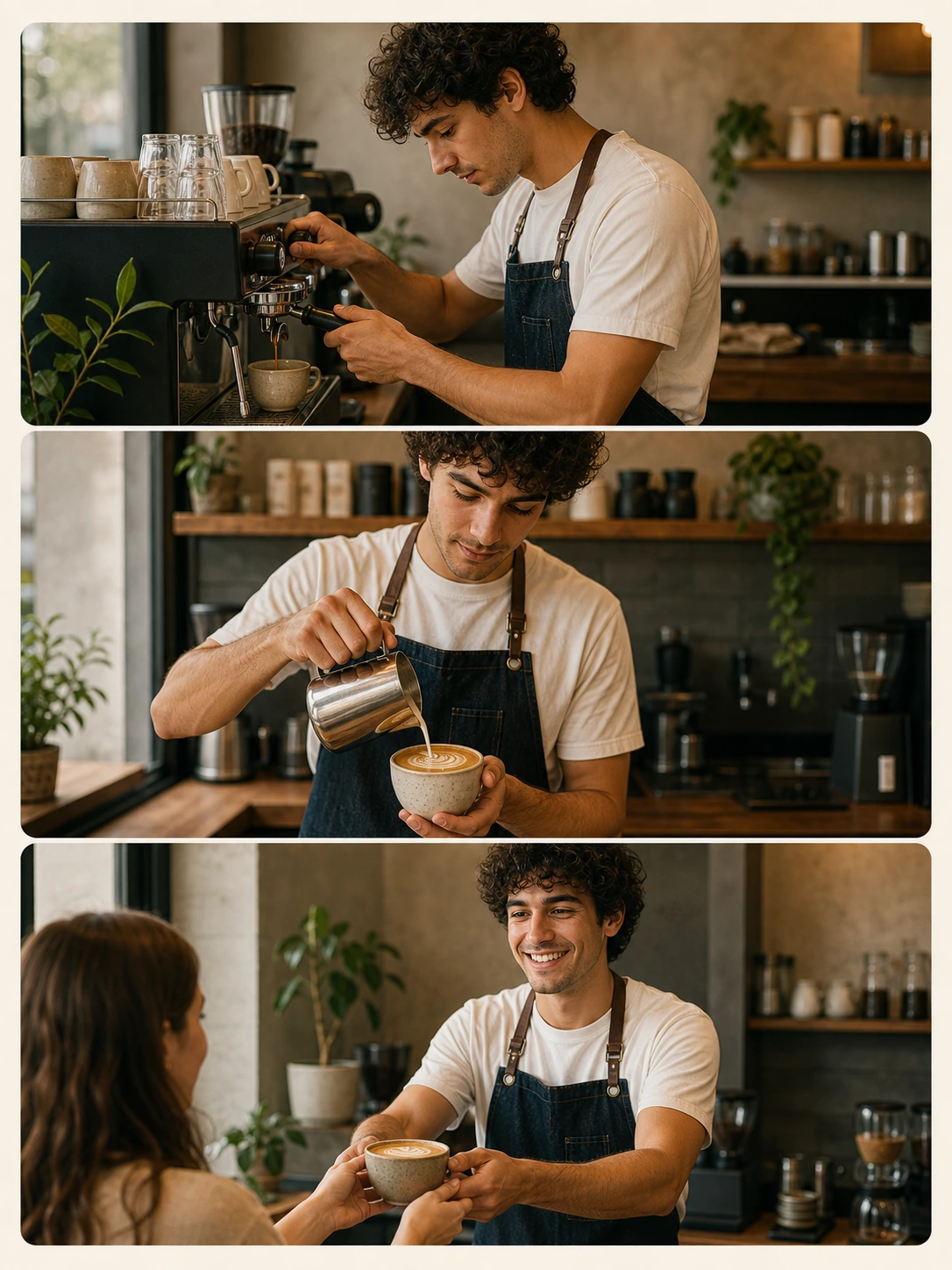
Character Sprite Conversion
Convert a portrait source into a retro character direction.
Game Sprite mode should keep the subject recognizable while simplifying forms into crisp pixel clusters.
Image 2 pixel art tool for retro photo conversion
Upload a photo and convert it into clean pixel art for avatars, character concepts, retro posters, game-style visuals, and social creative.
Photo to Pixel Art keeps the uploaded image as the visual source, then converts the subject into crisp retro pixel art with readable shapes, limited palettes, and clean square-pixel detail.
Upload one source image, choose the focused tool mode, then generate a cleaner AI-edited result.
Source image
RequiredMode
Create a readable retro sprite with clear silhouette and character detail.
Output shape
0/800
Showcase
Review example outputs from the photo to pixel art workflow before running your own file.
Source photo
Pixel art result
Convert a portrait source into a retro character direction.
Source photo
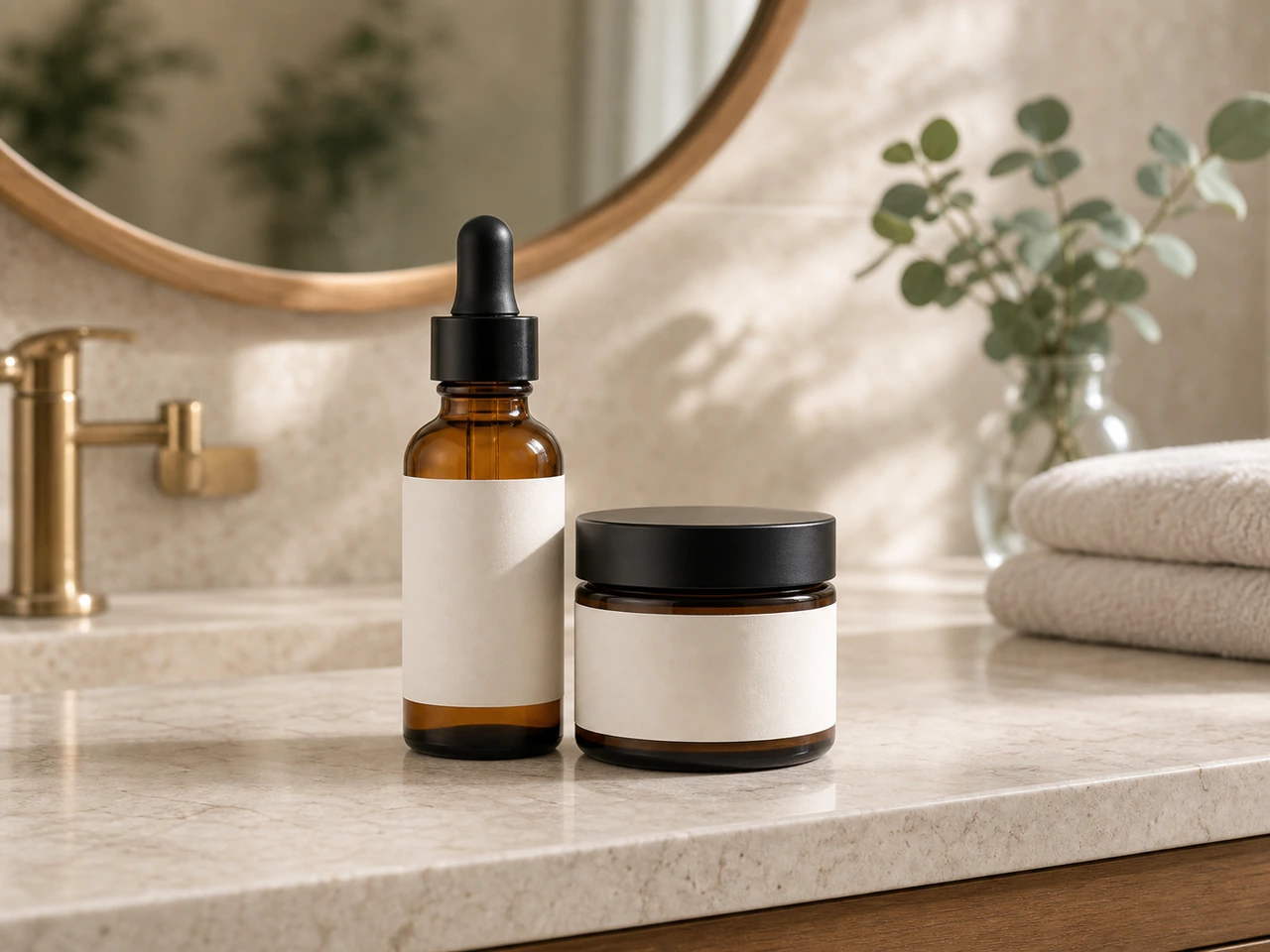
Pixel art result
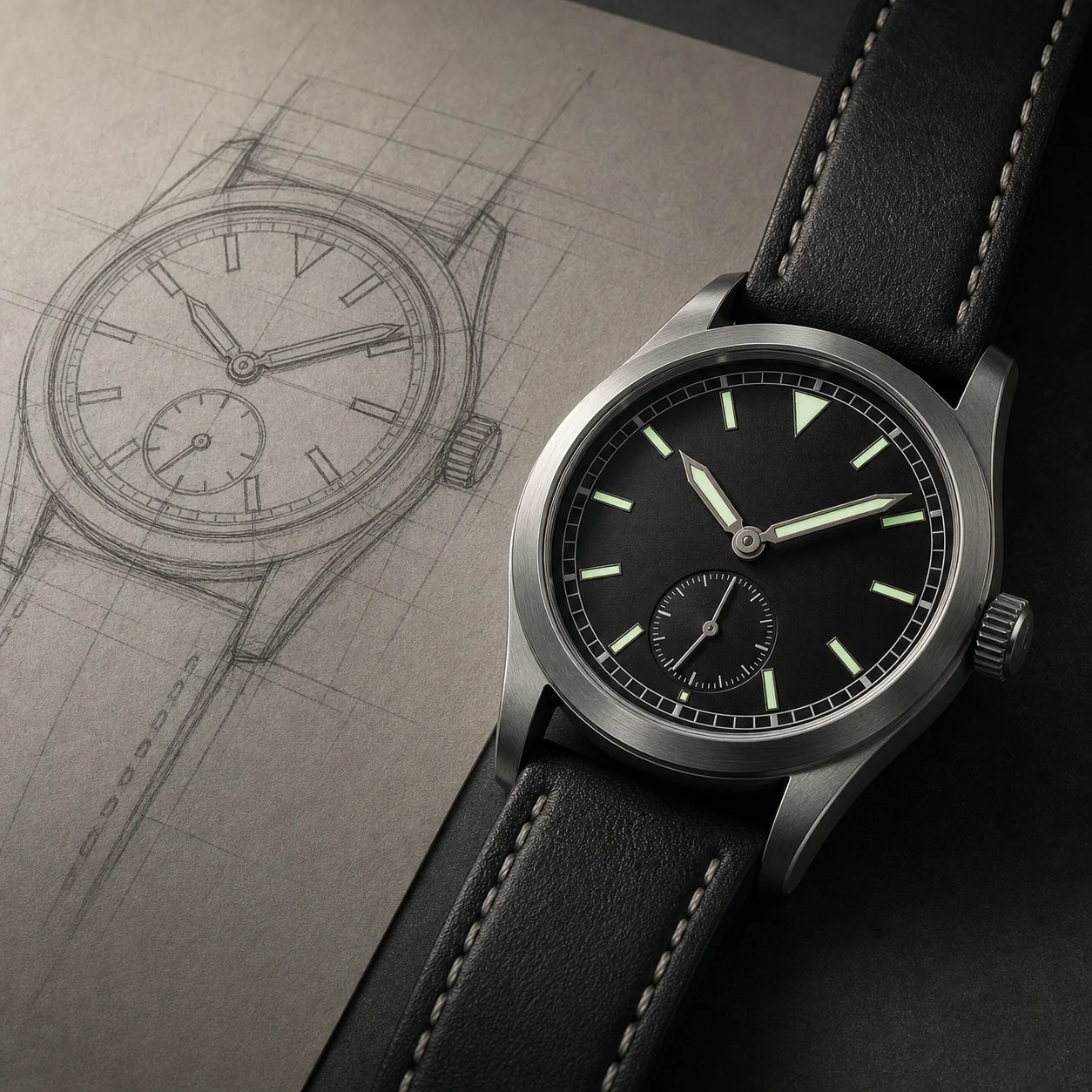
Turn an object reference into a retro pixel-art visual.
Source image
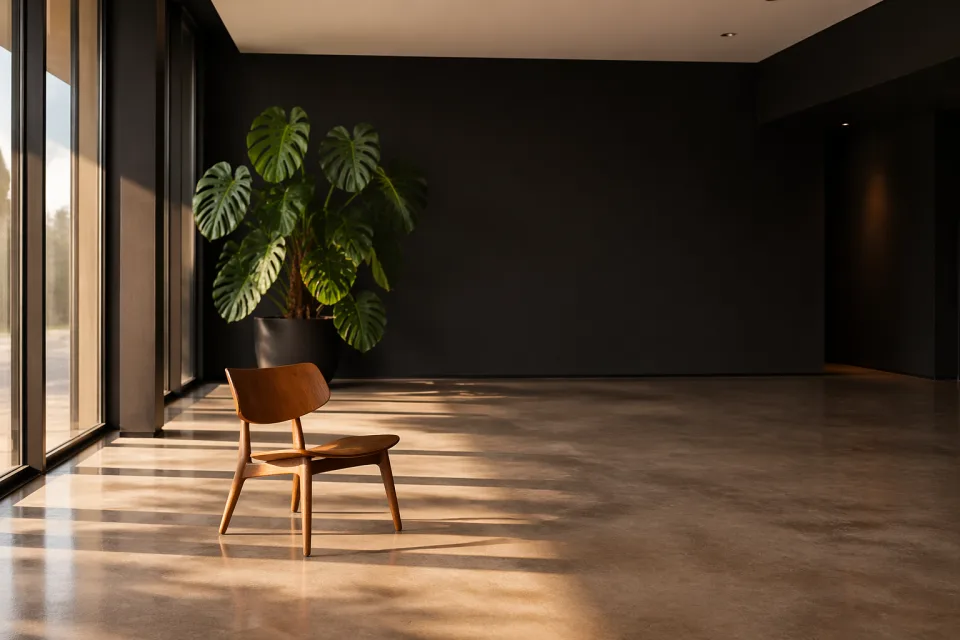
Pixel poster result
Transform a scene into a pixel poster direction.
Photo to Pixel Art turns one uploaded image into a crisp retro-style asset. Instead of starting from a blank prompt, the page uses the photo as the source of truth. The pixel art generator can keep subject, pose, silhouette, key colors, clothing, product shape, or character identity while changing the visual language into square-pixel artwork.
A strong photo to pixel art result should not look like a lazy resize or noisy mosaic. The goal is intentional pixel art: readable edges, controlled palette, simplified forms, and designed shading. Use it for profile avatars, creator posts, indie game concepts, retro thumbnails, product icons, pet portraits, and poster ideas.
Game Sprite mode is best for a small character-style result with a strong silhouette. It works for people, pets, mascots, toys, and objects that should read quickly. Retro Pixel mode gives an 8-bit or 16-bit inspired feel with a stricter palette. Pixel Poster mode creates a bigger composition for covers, social visuals, and scene-based images.
The page also gives you a note field for control. Use it to protect details such as keep the red jacket, preserve the sunglasses, keep the product label color, use a dark arcade palette, or make it feel like a 16-bit adventure game. Clear instructions help the AI pixel art generator choose what to preserve and what to stylize.
The best source photo has a clear subject and visible shape. Portraits should show the face and hairstyle. Products should show outline, color, and design details. Pets and mascots should not be hidden by blur or clutter. A clean source usually creates a cleaner photo to pixel art conversion.
Review the result like a design asset. Check whether the subject reads clearly, the pixel blocks feel intentional, and the palette supports the mood. If the output feels too smooth, ask for larger square pixels and a stricter palette. If it feels too abstract, ask the tool to preserve the face, pose, outline, or main color.
Each public tool page keeps the real generator close to the product promise, so visitors can understand the capability and try it without hunting through the app.
Use a photo as the source so pixel art keeps subject, pose, shape, and color.
Choose Game Sprite, Retro Pixel, or Pixel Poster depending on the final asset.
The prompt asks for crisp squares, readable edges, and limited palettes.
Useful for avatars, social posts, indie game visuals, and retro campaigns.
Use these starting points to match the page to concrete creation tasks.
Convert a portrait into a square pixel avatar.
Turn a pet, mascot, toy, or character into a retro sprite.
Create pixel-art composition for thumbnails, covers, or posts.
Keep the workflow simple: describe the output, choose the model settings, run a draft, then refine the strongest direction.
Step 1
Use a clear photo where shape, pose, and colors are visible.
Step 2
Pick Game Sprite, Retro Pixel, or Pixel Poster for the final creative direction.
Step 3
Mention palette, era, subject details, or details to preserve from the photo.
Step 4
Review whether the pixel art stays recognizable and crisp.
Quick answers for choosing the right settings before generating.
It converts one uploaded photo into pixel art while asking the edit to preserve the main subject, pose, silhouette, color identity, and recognizable details.
No. The Photo to Pixel Art prompt asks for intentional pixel art with crisp square pixels, limited palettes, readable edges, and retro-style shading.
Use a clear photo with one readable subject, visible shape, and important colors. Avoid heavy blur, tiny crops, and cluttered scenes.
Yes. Game Sprite mode is useful for pixel avatars, character concepts, pet sprites, mascot ideas, and creator profile images.
Use broad style notes like 16-bit, arcade, fantasy, or limited palette. Avoid asking the tool to copy copyrighted characters or branded game styles.