
Source product
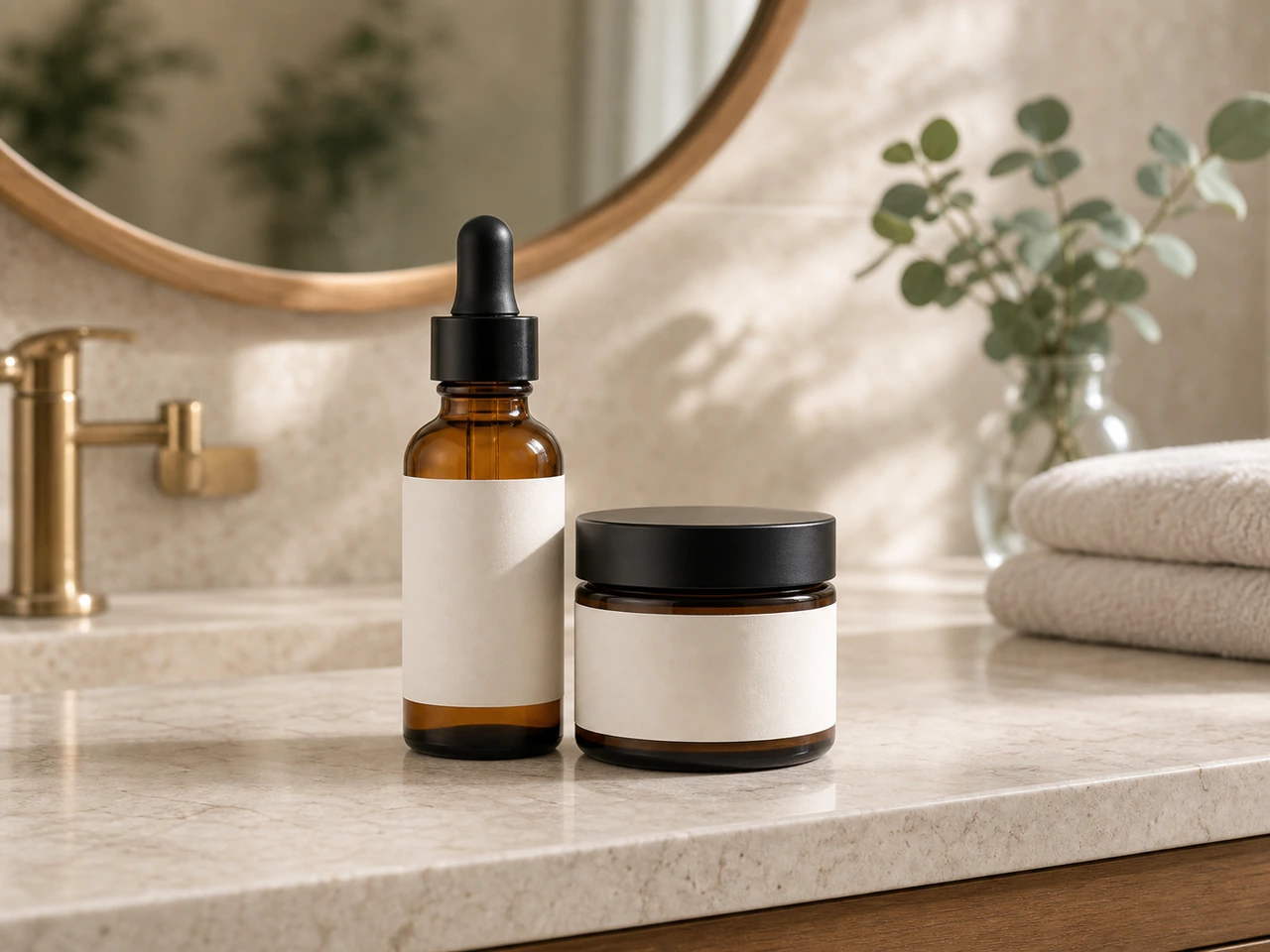
Studio product result
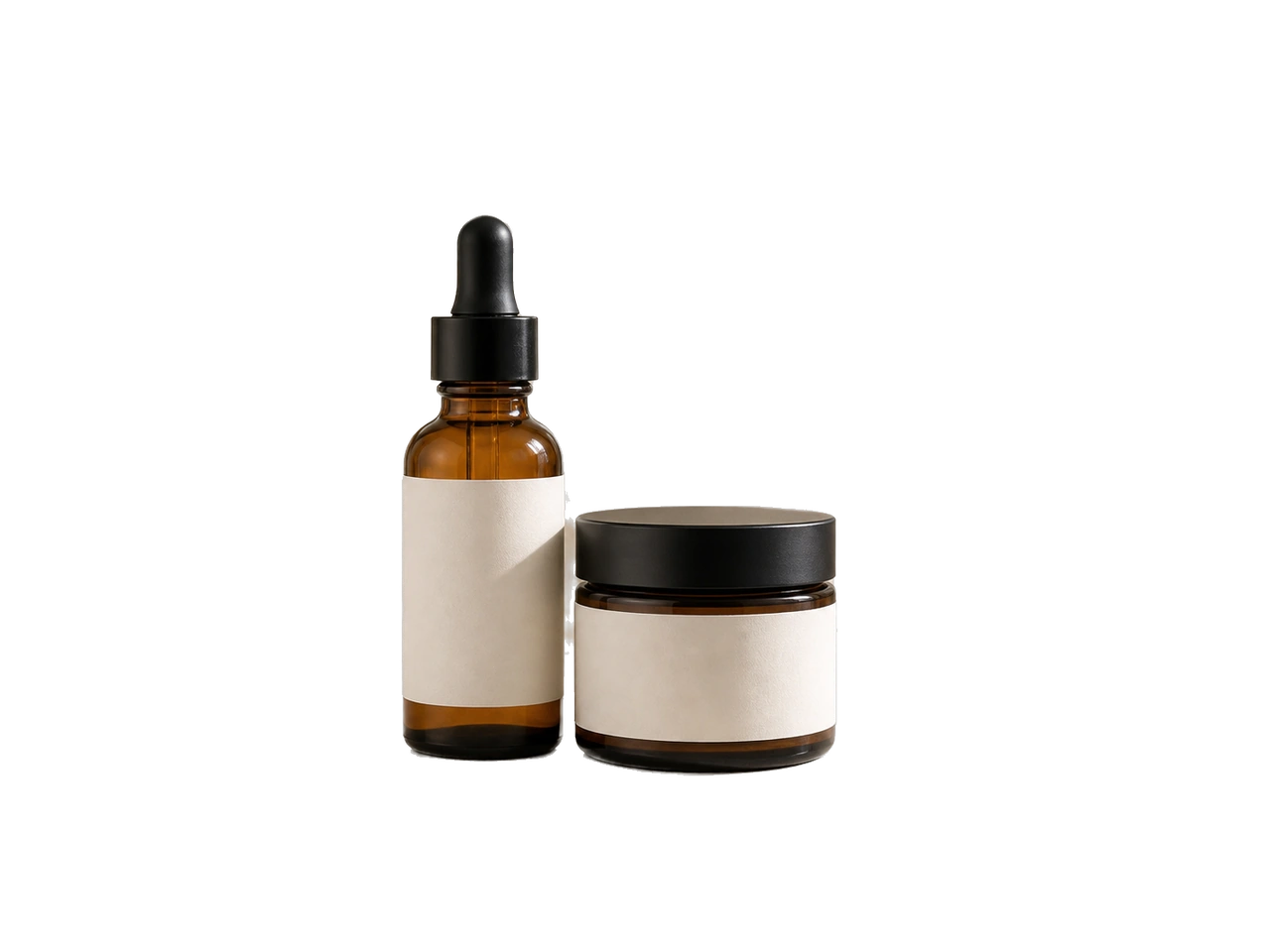
Studio Product Photo
Turn a plain snapshot into a cleaner studio image for listings.
Prompt focus: preserve the product shape, label, color, material, and realistic shadow.
Image 2 product photo tool for ecommerce and ads
Upload a product image and create a cleaner product photo for ecommerce listings, landing pages, ads, launch posts, and social campaigns.
The Product Photo Generator keeps the uploaded product as the source of truth, then improves lighting, background, composition, and commercial polish without redesigning the item.
Upload one source image, choose the focused tool mode, then generate a cleaner AI-edited result.
Source image
RequiredMode
Create a clean studio product photo with controlled lighting and realistic shadows.
Background
Use a bright white ecommerce background with a soft product shadow.
Output shape
0/800
Showcase
Review example outputs from the product photo generator workflow before running your own file.
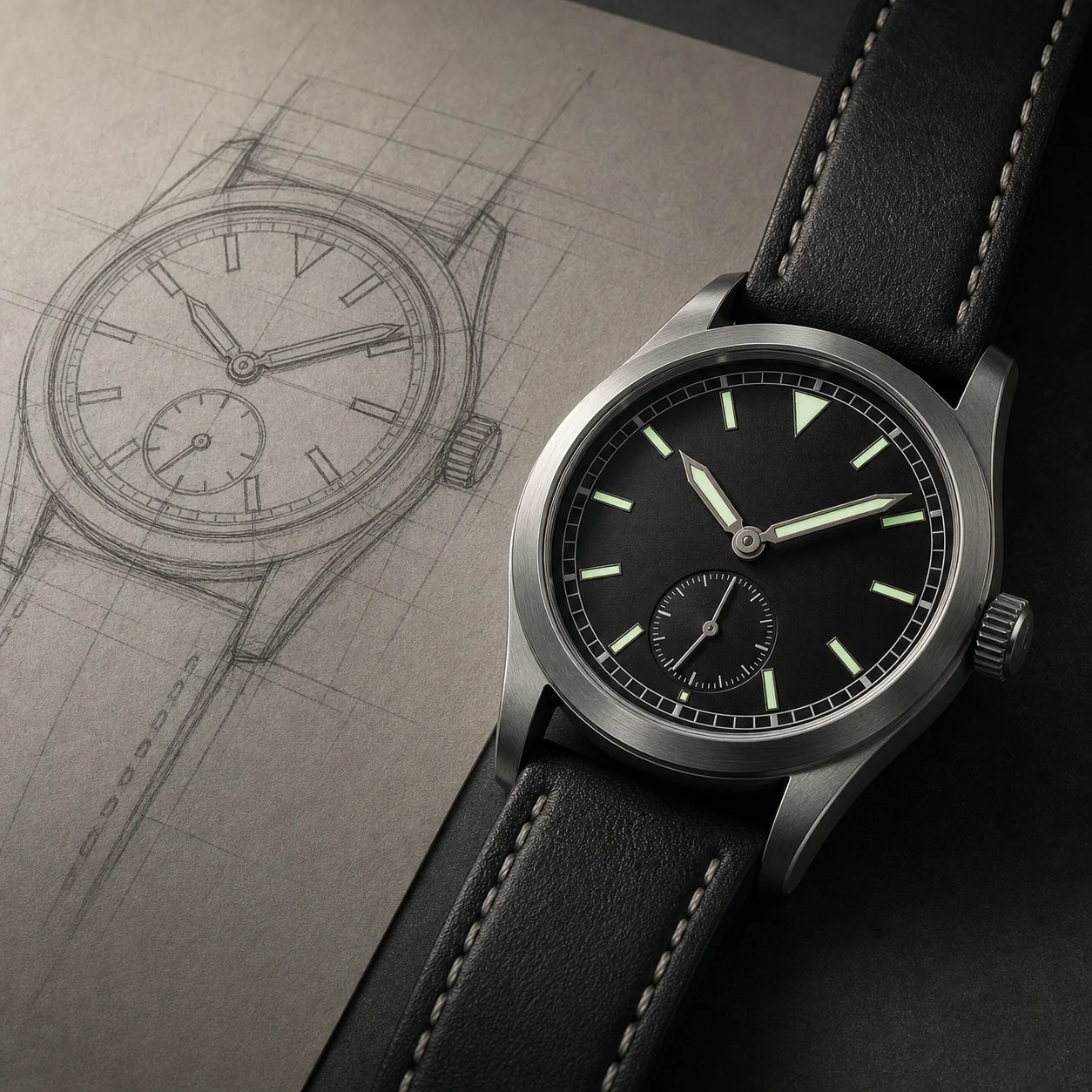
Source product
Studio product result
Turn a plain snapshot into a cleaner studio image for listings.
Source product
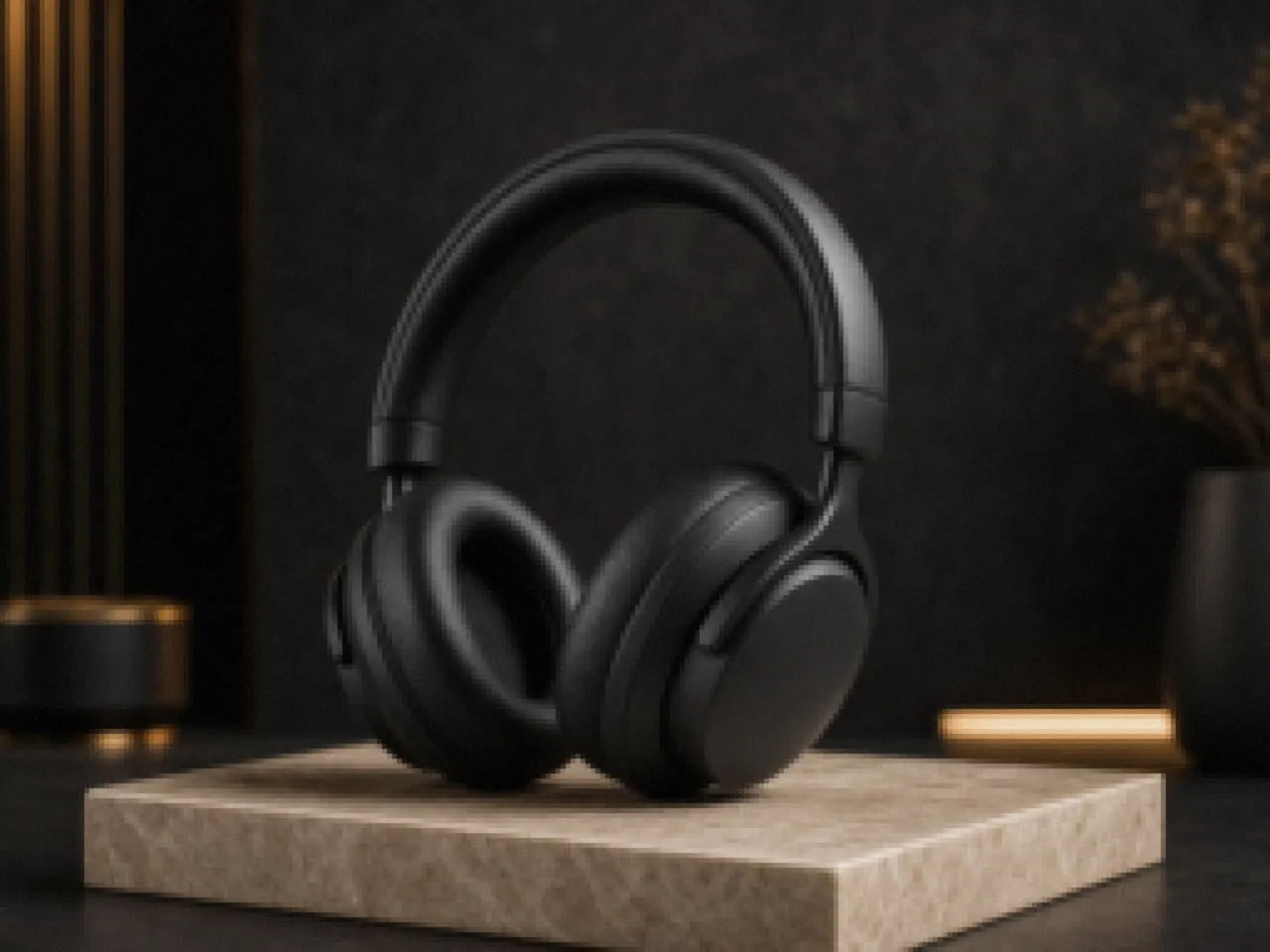
Commercial result
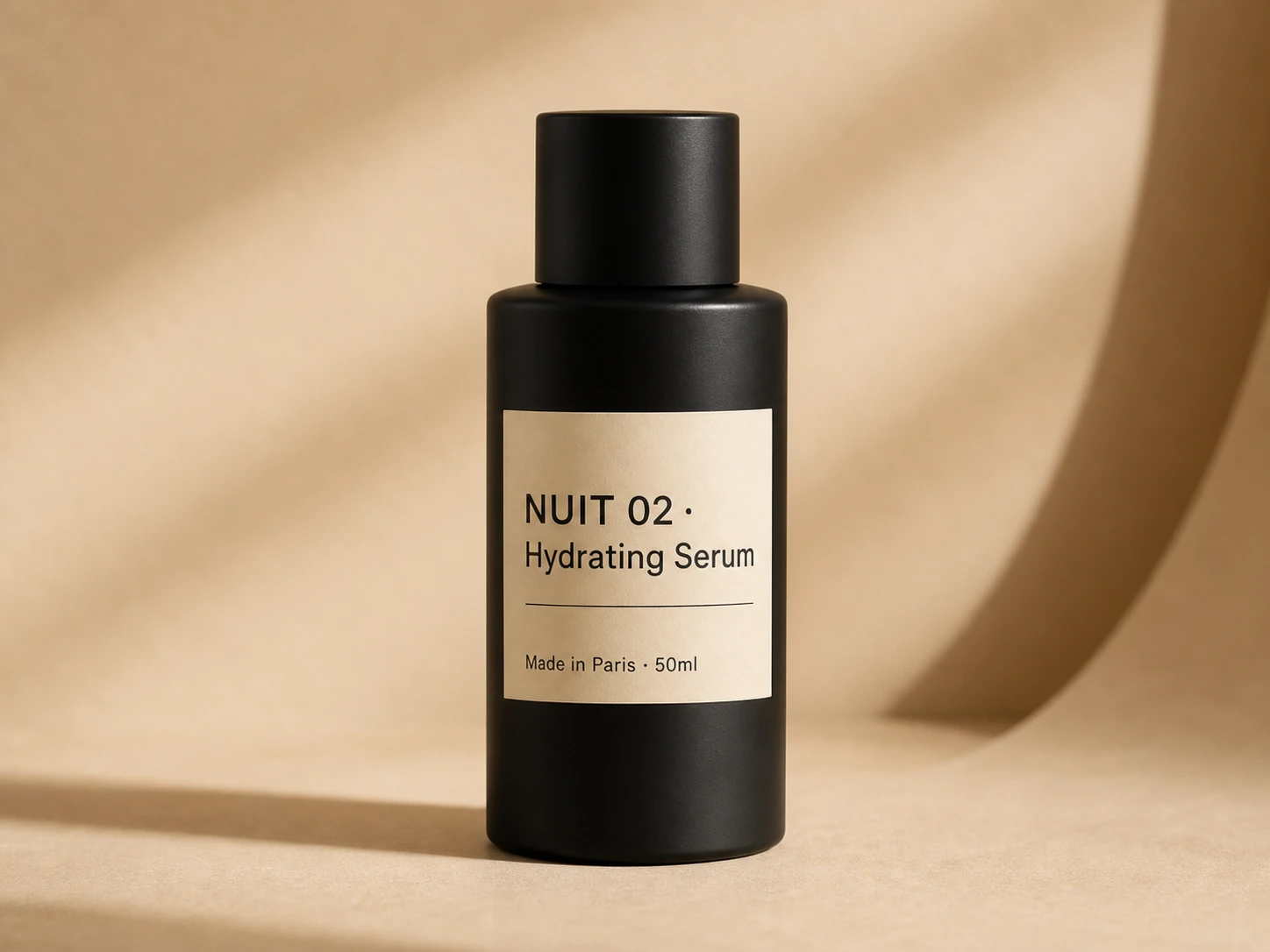
Create a polished product visual for launches, ads, and posts.
Source product
Lifestyle result
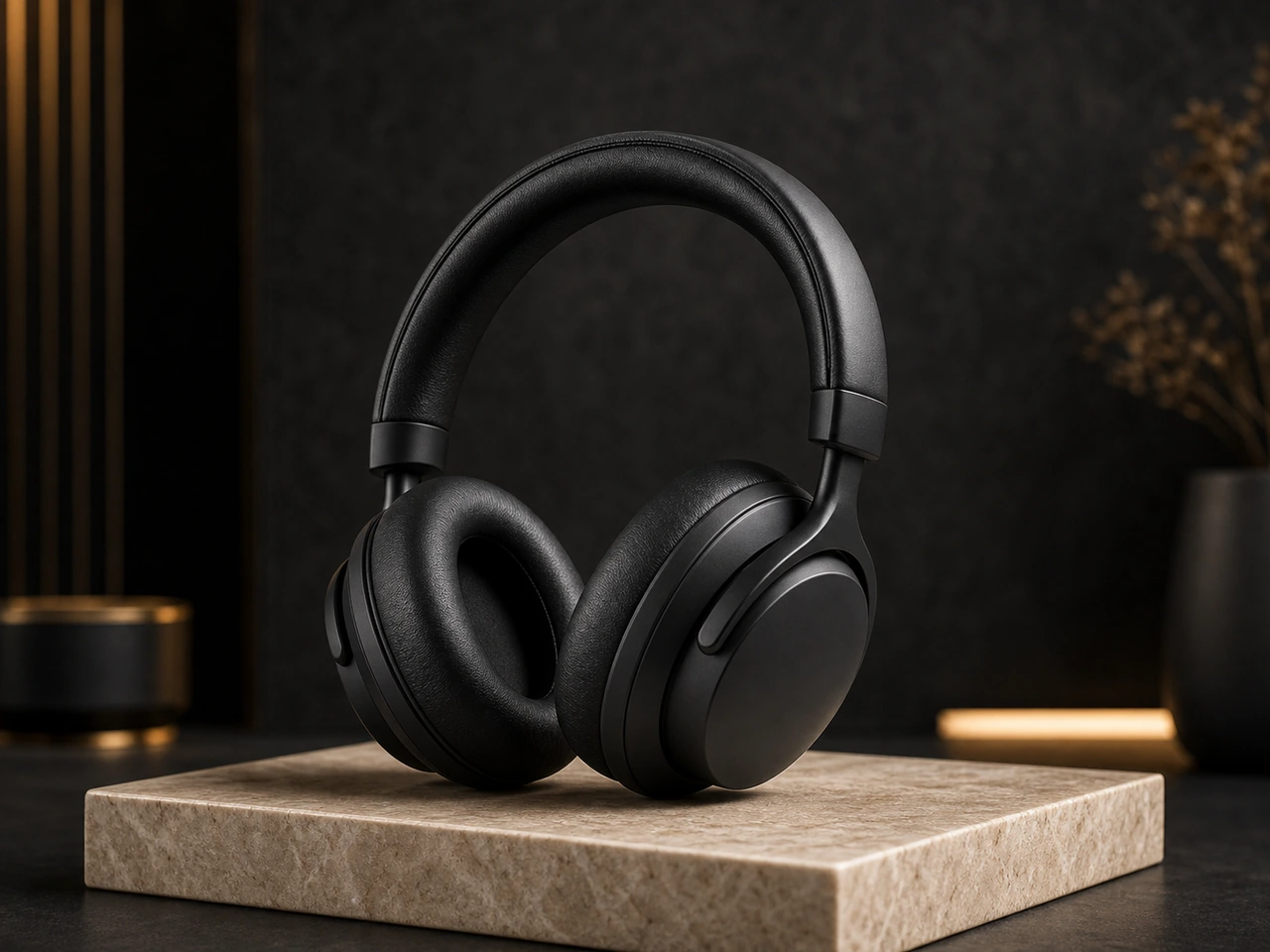
Place a product in context while keeping identity stable.
A Product Photo Generator helps when the product is ready but the image is not. Many sellers start with a real product snapshot that has the right item but the wrong lighting, crop, or background. Image 2 uses the upload as the reference, then builds a more polished product photo for ecommerce pages, launch posts, paid ads, and social content.
The most important job is preservation. A product photo should not redesign the bottle, change the package color, invent a new label, rewrite small text, or alter the product shape. The prompt protects material, logo, packaging text, color, proportions, and key design details so the result feels like the same item in a better shoot.
Studio Product mode is the safest setting for clean ecommerce images. It favors a controlled surface, soft shadow, balanced lighting, and a simple background. Lifestyle Scene mode places the item in context, such as a desk, counter, shelf, or home setting. Ad Creative mode gives the product photo more energy and room for later design work.
Background choice gives the product photo generator a clearer target. Clean White works for listings. Warm Studio feels premium for beauty, wellness, and packaging. Lifestyle adds context without changing the item. Social Ad leaves visual space for copy. If a label or logo must remain exact, write that instruction before generating.
The best source for an AI product photo generator is a clear image with the full item visible. Avoid heavy blur, extreme crops, dark lighting, strong reflections, or hidden packaging details. Small text should always be reviewed before commercial use, especially labels, claims, nutrition panels, safety notes, and legal copy.
Use the Product Photo Generator as a fast production step. Upload a product image, choose the mode, write one or two constraints, and compare the result against the source. If the output changes too much, use a cleaner image or add a stricter note such as keep the logo unchanged, preserve the cap, or do not add new text.
Each public tool page keeps the real generator close to the product promise, so visitors can understand the capability and try it without hunting through the app.
Protect shape, packaging, labels, logo, material, color, and proportions.
Choose studio, lifestyle, or ad creative output depending on the channel.
Select white, warm studio, lifestyle, or social-ad backgrounds.
Designed for product photos you own or can use commercially.
Use these starting points to match the page to concrete creation tasks.
Create cleaner visuals for marketplace cards and catalog pages.
Polish a product image for a launch page or announcement banner.
Improve lighting and composition for campaign testing.
Keep the workflow simple: describe the output, choose the model settings, run a draft, then refine the strongest direction.
Step 1
Use a clear source where label, shape, and material are visible.
Step 2
Pick Studio Product, Lifestyle Scene, or Ad Creative for the final channel.
Step 3
Select white, warm studio, lifestyle, or social-ad framing before generating.
Step 4
Review labels, logo, text, shape, and color before publishing.
Quick answers for choosing the right settings before generating.
It turns one product image into a cleaner studio, lifestyle, or ad-ready product photo while preserving identity and design details.
The prompt asks the Product Photo Generator to preserve logos, labels, packaging text, and product shape. Always review small text before using the result commercially.
Yes. Studio Product mode is designed for product listings, catalog images, landing pages, and marketplace visuals.
Use a clear product photo with visible shape, material, label, color, and packaging details. Avoid dark or blurry sources.
No. The Product Photo Generator creates the product visual. Add headlines, prices, and legal copy later in your design tool.