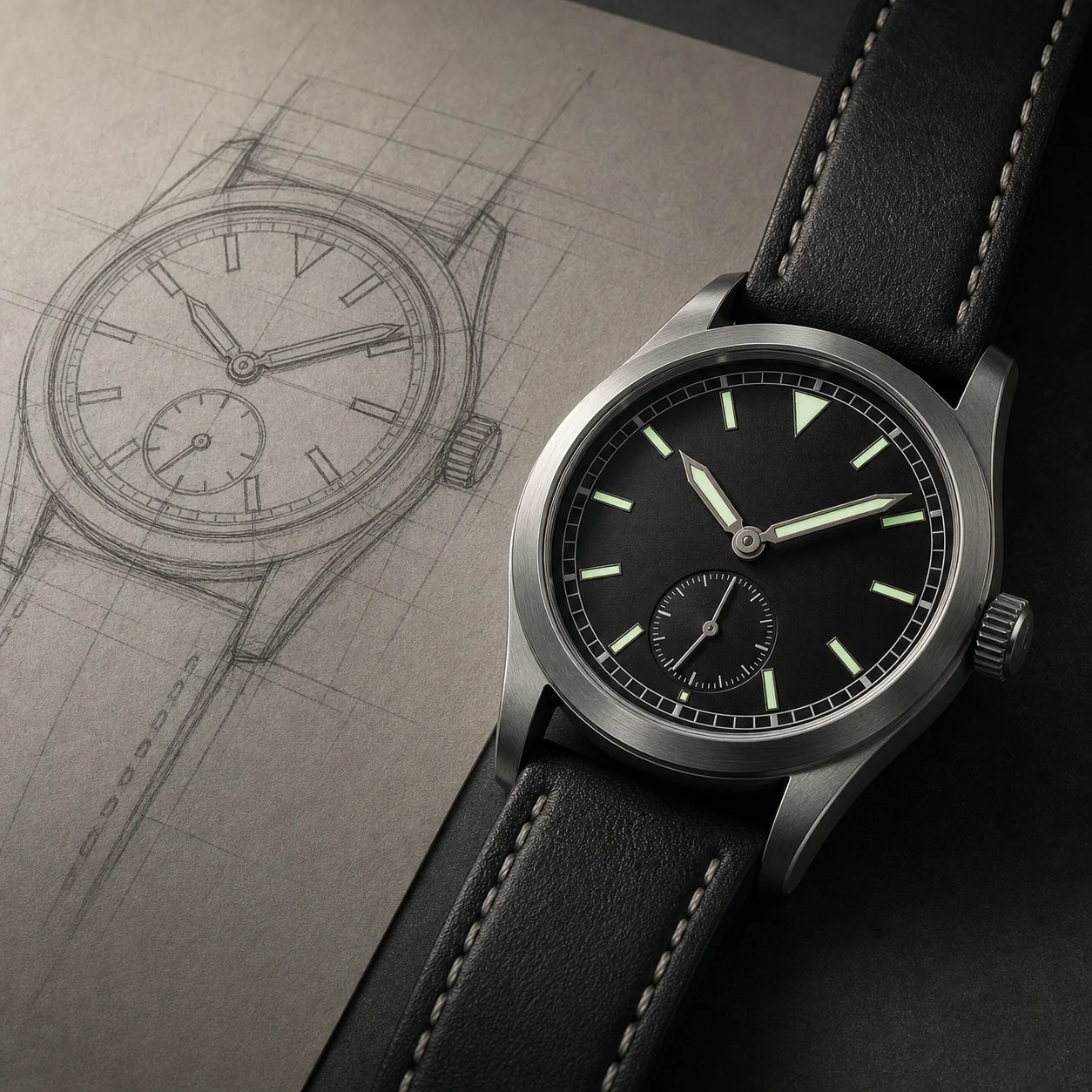
Source photo

Sketch result

Portrait to Pencil Sketch
Turn a portrait reference into a soft pencil sketch while keeping the person recognizable.
Image 2 sketch tool for clean photo conversion
Upload a photo and turn it into a clean pencil sketch, ink line drawing, or product sketch while preserving the subject, pose, composition, and key details.
Photo to Sketch uses one uploaded image as the reference, then converts the source into a hand-drawn sketch direction with cleaner lines, controlled shading, and recognizable subject detail.
Upload one source image, choose the focused tool mode, then generate a cleaner AI-edited result.
Source image
RequiredMode
Create a soft graphite sketch with paper texture, hatching, and natural shading.
Output shape
0/800
Showcase
Review example outputs from the photo to sketch workflow before running your own file.
Source photo

Sketch result
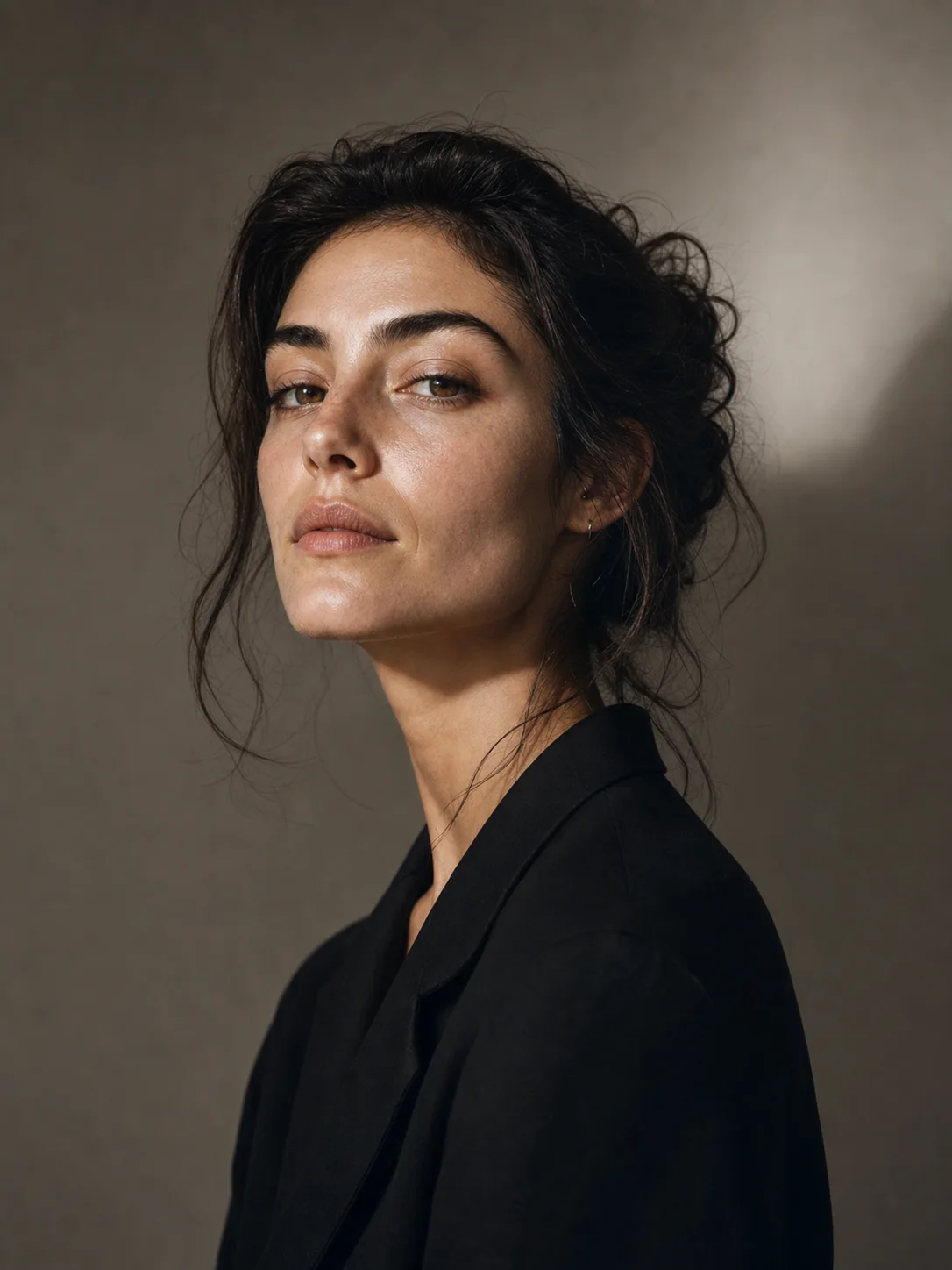
Turn a portrait reference into a soft pencil sketch while keeping the person recognizable.
Source product

Product sketch result

Convert a product source into a clean sketch direction for concept and presentation use.
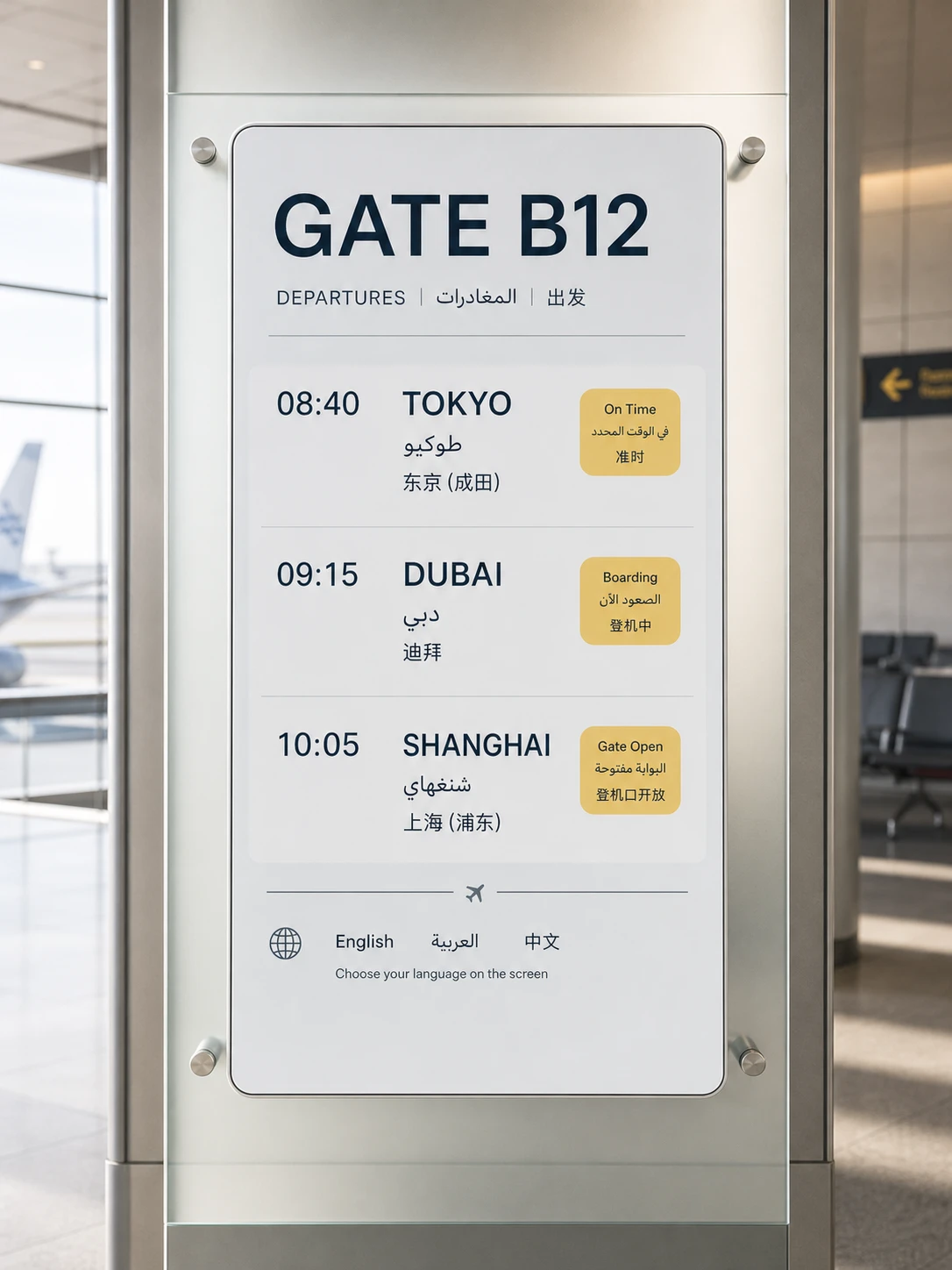
Source image

Ink drawing result

Use a source scene as the structure for a cleaner line-art composition.
Photo to Sketch is built for people who want a clean drawing direction without redrawing the subject by hand. Upload one image and the photo sketch converter uses it as the visual source. The tool can preserve face identity, pose, product shape, scene structure, clothing, color relationships, and recognizable details while changing the image into a pencil sketch, ink line drawing, or product concept sketch.
A good photo to sketch result should feel intentionally drawn, not like a quick blur filter. The AI sketch generator focuses on graphite shading, paper texture, contour, hatching, and clean hand-drawn structure. Use it for portrait sketches, pet drawings, product concepts, storyboard references, architecture studies, creator posts, profile art, and visual exploration when you need to turn photo into sketch quickly.
Pencil Sketch mode is the safest choice for portraits, people, pets, and lifestyle photos. It creates a softer photo to sketch result with graphite shading, paper texture, and natural tonal detail. Ink Line mode is better when you want cleaner contour, minimal shading, and a more graphic drawing. Product Sketch mode is made for objects, packaging, devices, accessories, and commercial concepts.
The optional instruction field gives the photo sketch converter more control. You can write keep the face recognizable, preserve the glasses, use soft pencil shading, keep the product silhouette, protect the label area, or make the linework lighter. The clearer the note, the easier it is for the AI sketch generator to keep the important information while simplifying everything else into a drawing.
The best source for a photo to sketch workflow is sharp, well-lit, and easy to read. Faces should not be hidden by heavy shadows or extreme crop. Products should show outline, material, label area, and proportions. Scenes should have a clear structure. If the source is noisy or cluttered, the sketch may also feel busy, so use a direct note to simplify the background or emphasize the main subject.
After using the AI sketch generator, inspect the result like a drawing asset. Check whether the subject still reads clearly, the lines feel intentional, and the shading supports the image. If the output looks too smooth, ask for stronger pencil texture. If it looks too abstract, ask the photo sketch converter to preserve the face, pose, product shape, or main outline. This keeps photo to sketch results useful instead of generic.
Each public tool page keeps the real generator close to the product promise, so visitors can understand the capability and try it without hunting through the app.
Use a real photo as the source so the sketch keeps subject, pose, shape, and composition.
Choose pencil, ink line, or product sketch depending on the final creative use.
The prompt asks for intentional drawing detail instead of a flat low-effort filter.
Convert portraits, pets, objects, product shots, architecture, or scene references.
Use these starting points to match the page to concrete creation tasks.
Turn a face or profile image into a cleaner pencil sketch for creative use.
Create a sketch-style product visual for concept boards and presentations.
Convert a room, street, or object scene into a structured ink drawing.
Keep the workflow simple: describe the output, choose the model settings, run a draft, then refine the strongest direction.
Step 1
Use a clear source image where the subject, outline, and important details are visible.
Step 2
Pick Pencil Sketch, Ink Line, or Product Sketch based on the result you need.
Step 3
Mention details to keep, such as face identity, product shape, logo area, or scene structure.
Step 4
Review whether the sketch stays recognizable and avoids filter-like blur.
Quick answers for choosing the right settings before generating.
It turns one uploaded photo into a pencil sketch, ink line drawing, or product sketch while preserving the source subject and composition.
No. The Photo to Sketch prompt asks for intentional graphite shading, linework, paper texture, and readable hand-drawn structure.
Use a sharp photo with a clear subject, visible outline, and important details. Portraits, products, pets, objects, and structured scenes work well.
Yes. Product Sketch mode is designed to preserve shape, material cues, proportions, and recognizable product details.
Yes. Choose Pencil Sketch, Ink Line, or Product Sketch, then add a short note for shading, line strength, or details to preserve.