
Generated image
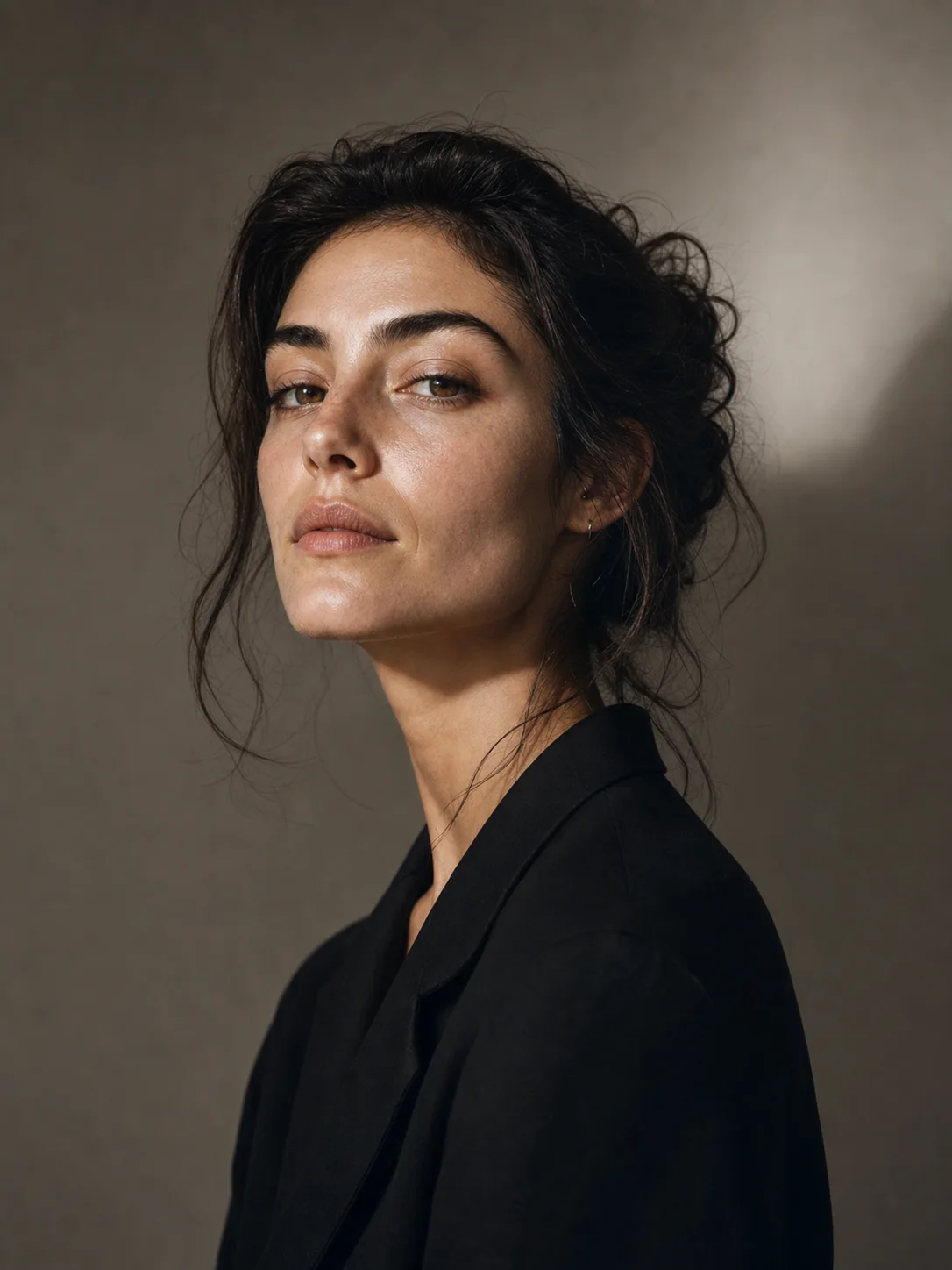
Studio Portrait
A polished editorial portrait direction for profile, founder, creator, and press assets.
Prompt focus: natural skin texture, neutral background, soft rim light, and a confident press-photo expression.
AI image generator and editor
Create images from prompts, uploaded references, and reusable prompt examples. The workspace keeps model, ratio, resolution, credit cost, history, and downloads in one real tool.
Use this as the main Image entry in the four-core Image 2 tool system.
Showcase
Review practical image directions and prompt patterns before creating your own product visual, poster, portrait, character system, or infographic.
Generated image
A polished editorial portrait direction for profile, founder, creator, and press assets.
Generated image
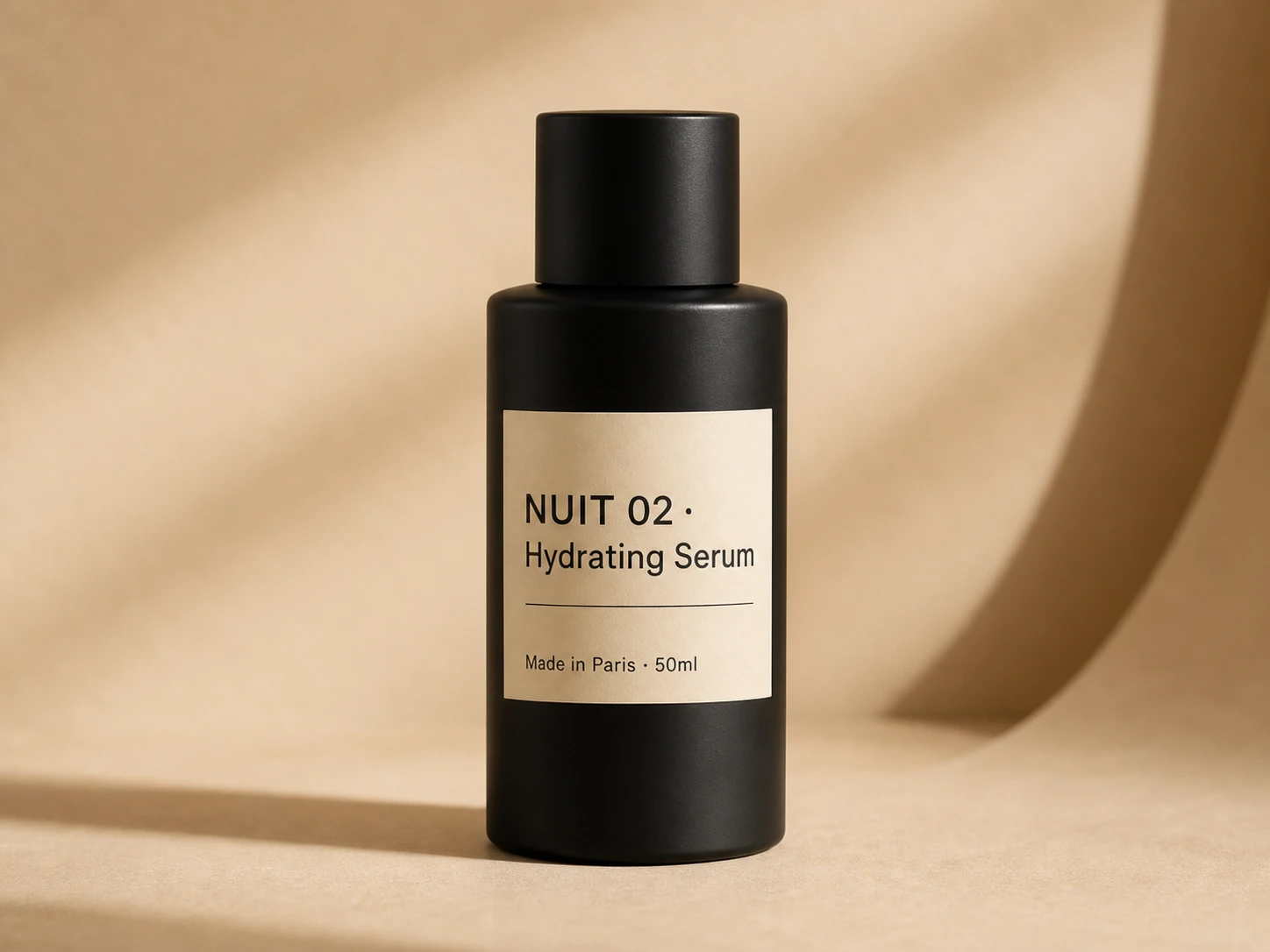
A commercial product visual with realistic material, clean shadows, and usable headline space.
Generated image
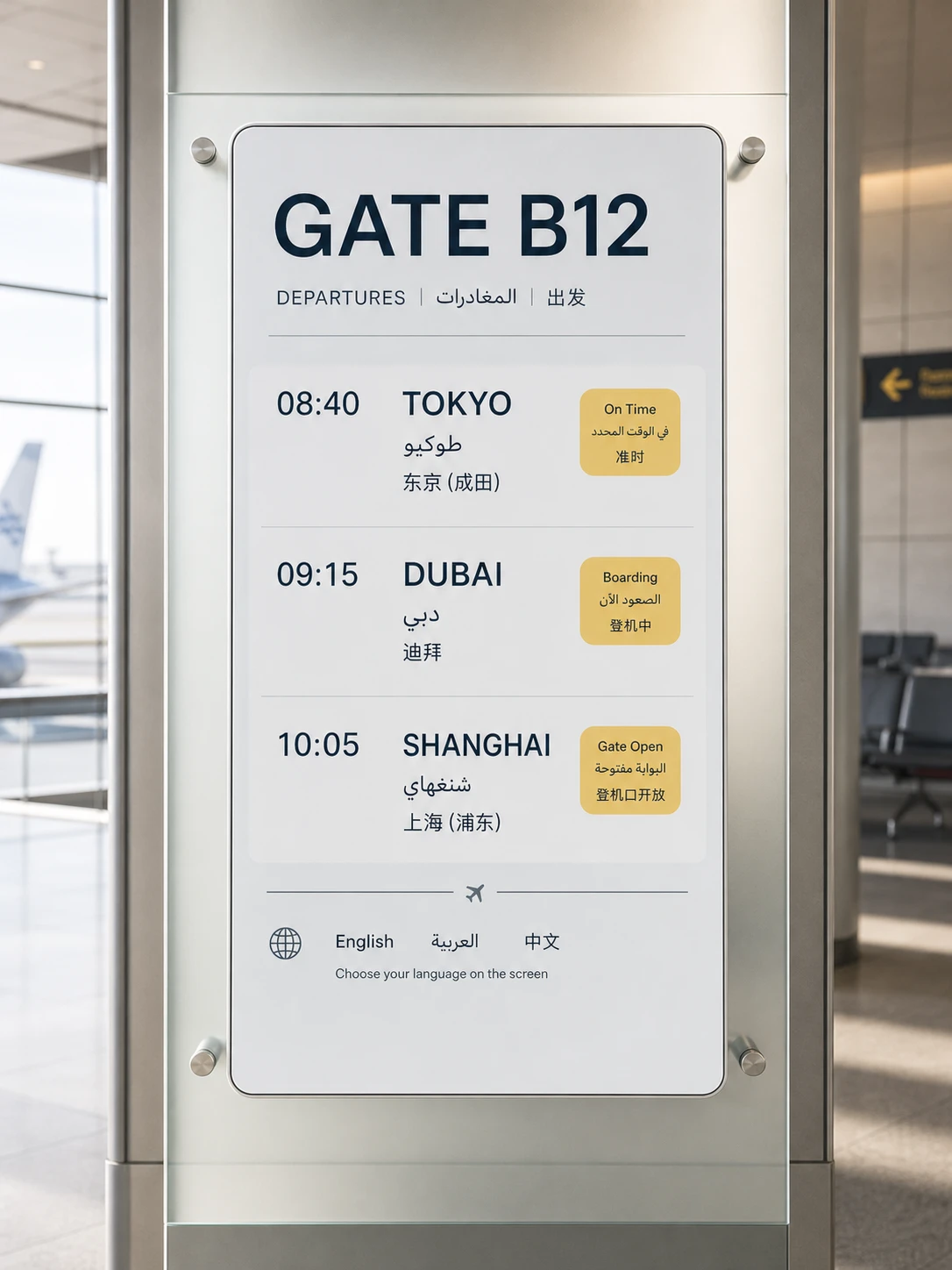
A poster-style image direction for short headlines, bold graphics, and clear visual hierarchy.
Generated image
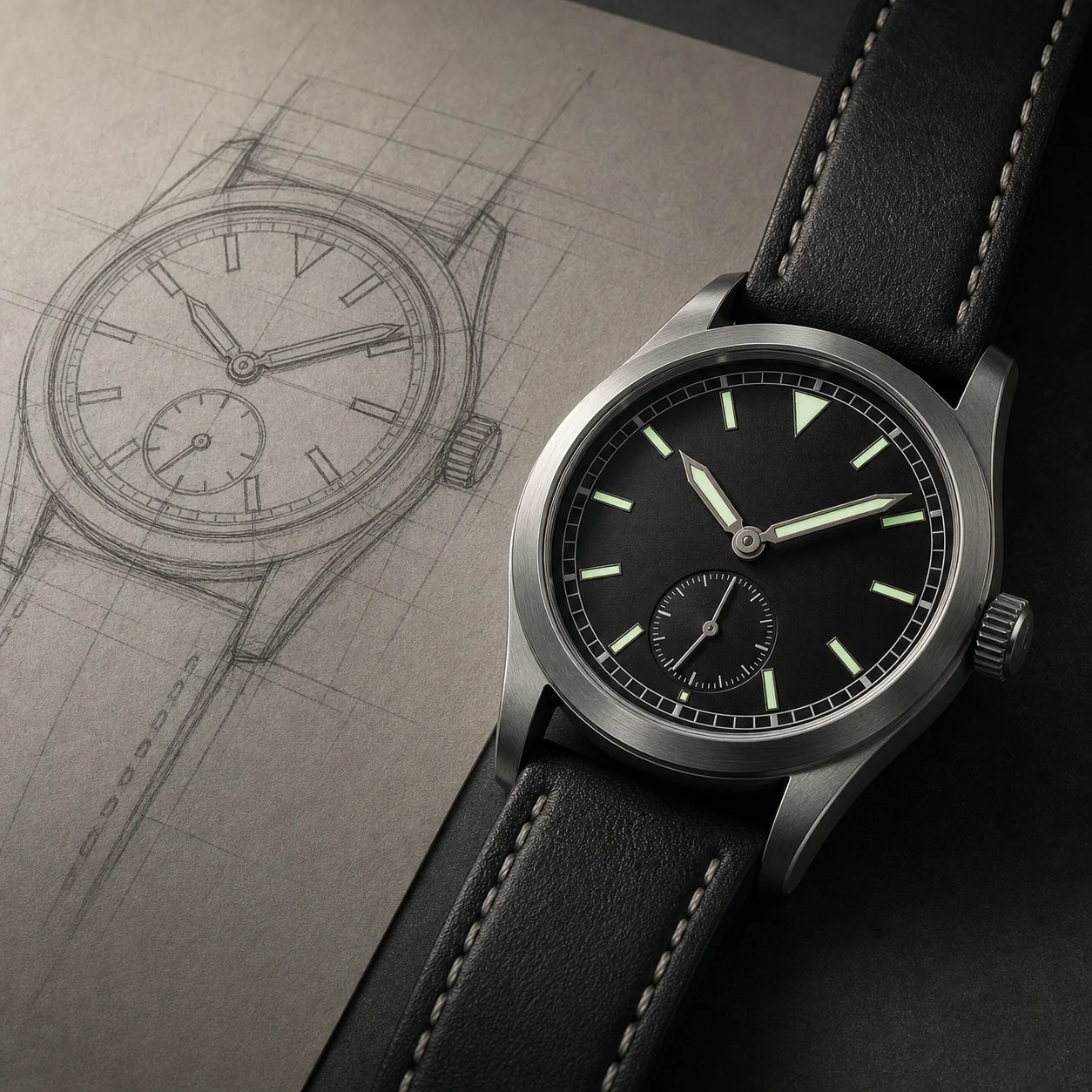
A reference-aware workflow for preserving a product or sketch while changing the final scene.
Generated image
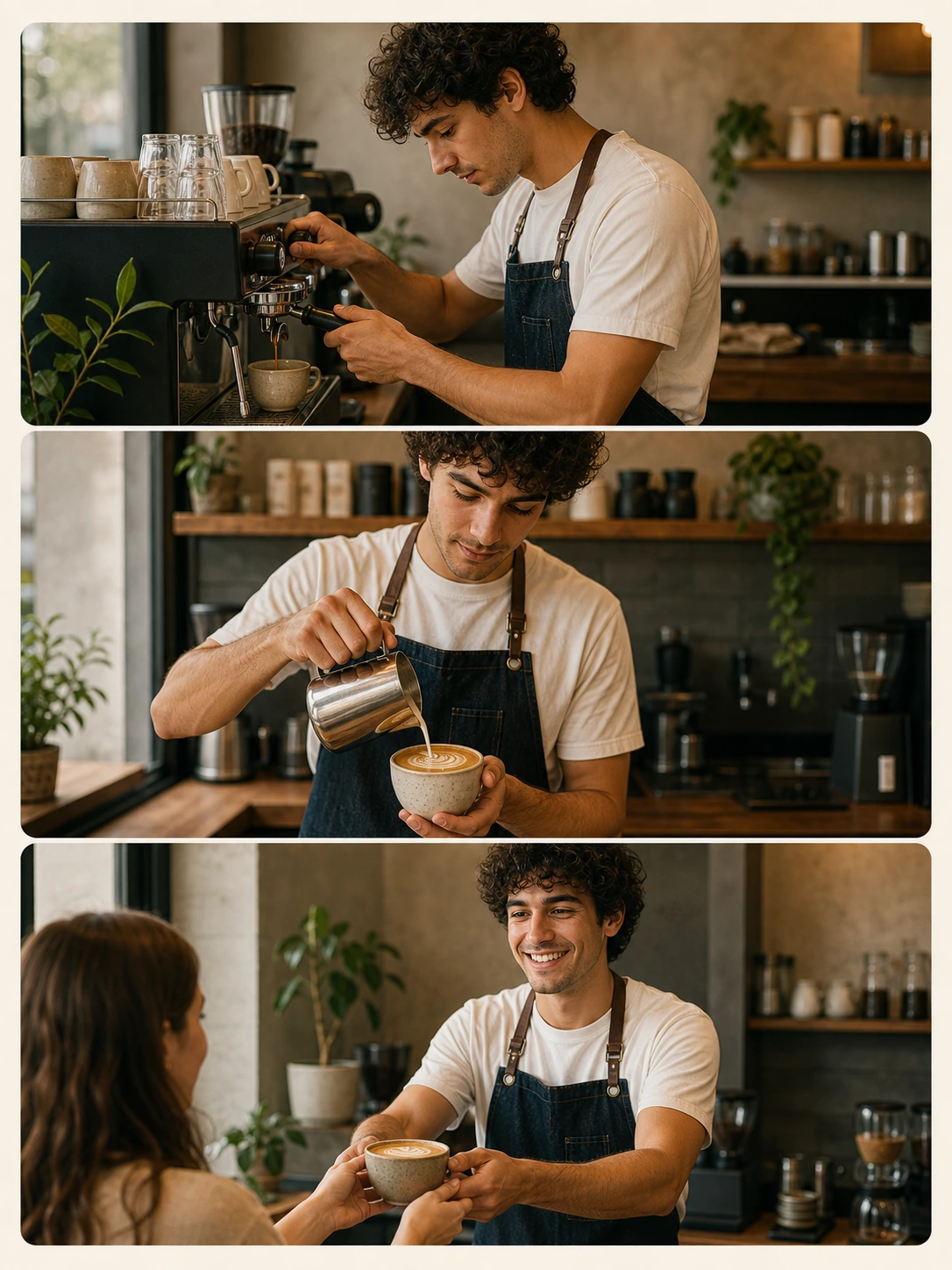
A character continuity example for mascot, sticker, onboarding, and campaign systems.
Generated image
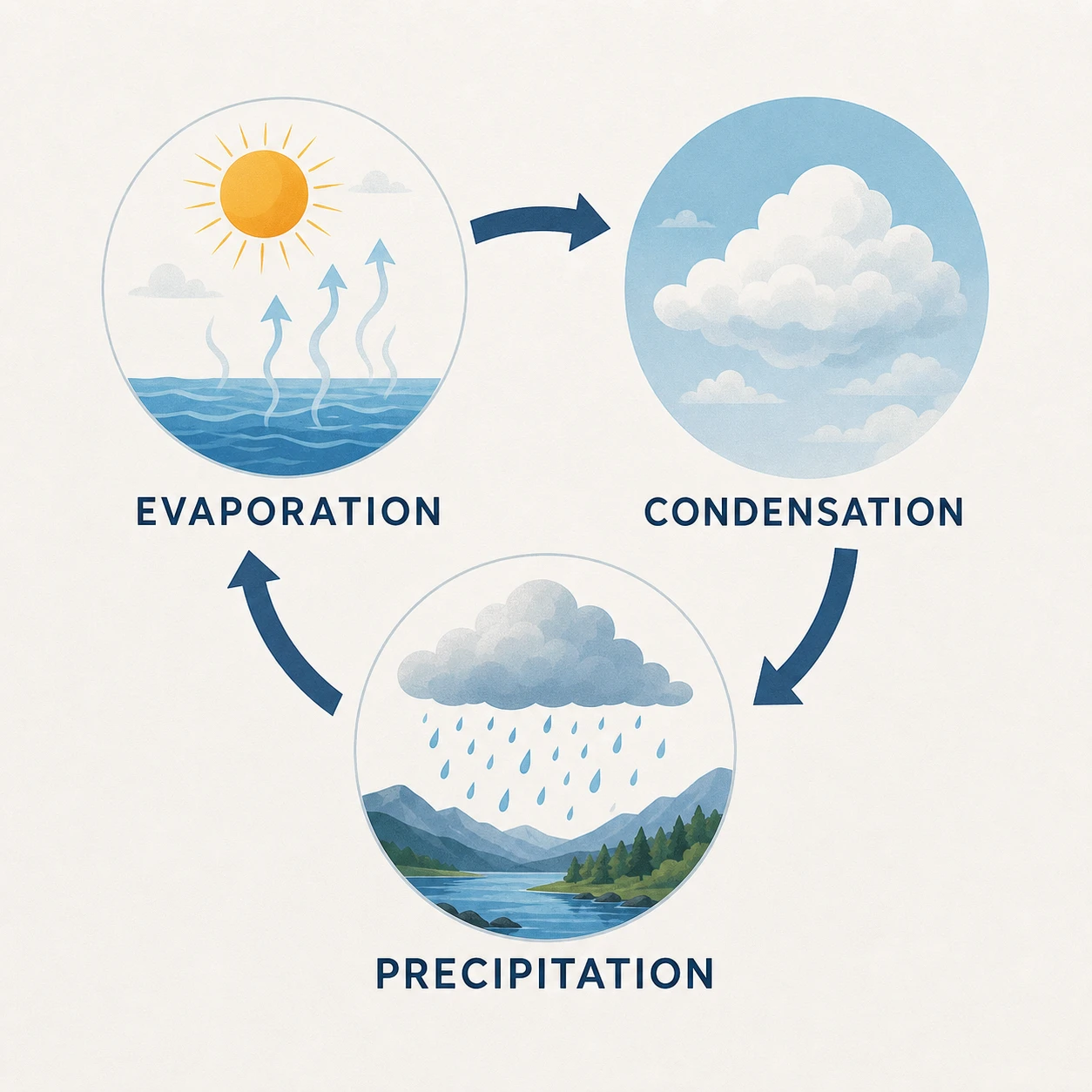
A structured visual explanation with readable labels, chart blocks, icons, and clean spacing.
Use focused workflows for product photos, pixel art, enhancement, canvas expansion, and background cleanup when you already have a source image.
The AI Headshot Generator keeps the uploaded face as the identity source, then improves lighting, framing, clothing polish, and background for a realistic business-ready profile image.
Open toolThe Product Photo Generator keeps the uploaded product as the source of truth, then improves lighting, background, composition, and commercial polish without redesigning the item.
Open toolThe AI Poster Generator uses one uploaded image as the reference, then builds a stronger poster composition with controlled lighting, background design, copy space, and campaign-ready visual polish.
Open toolPhoto to Pixel Art keeps the uploaded image as the visual source, then converts the subject into crisp retro pixel art with readable shapes, limited palettes, and clean square-pixel detail.
Open toolPhoto to Sketch uses one uploaded image as the reference, then converts the source into a hand-drawn sketch direction with cleaner lines, controlled shading, and recognizable subject detail.
Open toolThe image upscaler is built for practical cleanup: product photos, portraits, social posts, thumbnails, and marketing visuals that need a clearer finish before publishing.
Open toolThe image expander helps turn tight crops into landing-page heroes, vertical ads, marketplace banners, and social visuals with more usable space around the subject.
Open toolThis cleanup tool uses one uploaded picture as the source, removes the selected overlay target, and fills the cleaned area naturally while preserving the main subject, layout, color, and context.
Open toolThe remove background page is built for fast commercial work: upload one source image, choose the subject mode, choose the new background style, and generate a clean result.
Open toolEach public tool page keeps the real generator close to the product promise, so visitors can understand the capability and try it without hunting through the app.
Turn a written prompt into product visuals, posters, portraits, ads, explainers, and social images.
Upload source images when the selected model supports references, then keep the important subject or brand details stable.
See estimated cost before generation and keep output history close to the workspace.
Open a prompt, reuse the direction, and keep refining inside the same image tool.
Use these starting points to match the page to concrete creation tasks.
Create polished ecommerce and landing-page visuals with clean lighting, controlled shadows, and room for headline copy.
Turn a campaign brief into social ads, retail posters, thumbnails, and launch graphics with a clear visual hierarchy.
Generate editorial portraits, creator profile images, founder shots, and speaker-card visuals from a concise direction.
Keep a mascot, character, outfit, or product identity stable across poses, scenes, and campaign variations.
Use uploaded photos to preserve the subject while changing background, style, lighting, or commercial context.
Draft simple visual explainers with short labels, numbered sections, icons, and clear spacing.
Start from a focused brief, then adjust the subject, style, ratio, and output details in the generator.
Create a premium product hero image for a matte black desk lamp on a warm oak desk, soft window light, realistic shadows, crisp label text, clean space for a headline.
Design a bold launch poster for a summer drink, bright color grade, condensation on the can, one short readable headline, price badge, strong contrast, social ad layout.
Create a sharp editorial studio portrait with natural skin texture, soft rim light, neutral background, confident expression, premium press-photo style.
Create the same friendly robot mascot in three poses, matching face, body proportions, outfit, color palette, and soft studio lighting.
Use the uploaded product photo as the source. Keep the logo, shape, and material accurate, replace the background with a premium lifestyle scene, match lighting naturally.
Design a four-step infographic with readable labels, simple icons, numbered blocks, generous spacing, clean white background, and a modern SaaS visual style.
Keep the workflow simple: describe the output, choose the model settings, run a draft, then refine the strongest direction.
Step 1
Name the asset type first: product image, poster, ad, portrait, character sheet, or infographic.
Step 2
Upload a product, face, room, style, or sketch when the selected model supports reference images.
Step 3
Pick the model, aspect ratio, and resolution that match the final channel before generating.
Step 4
Reuse the strongest prompt direction and change one weak detail at a time.
Quick answers for choosing the right settings before generating.
Use it for product hero shots, posters, social ads, portraits, character concepts, thumbnails, infographics, and reference-led image edits.
Yes. When the selected model supports references, you can upload source images and describe what should stay consistent or change.
GPT Image 2 is the default for text-aware commercial visuals. Nano Banana 2 and Nano Banana Pro are nearby when you want alternate Google image-model directions.
GPT Image 2 works best with short, clear text such as labels, badges, poster headlines, package copy, and simple infographic callouts.
Keep the strongest image direction, then tighten the prompt around subject, composition, lighting, reference rules, ratio, and any text that must appear.
Finished generations can appear in history with the model, prompt, settings, and output, so you can download or reuse the direction later.