
Original image
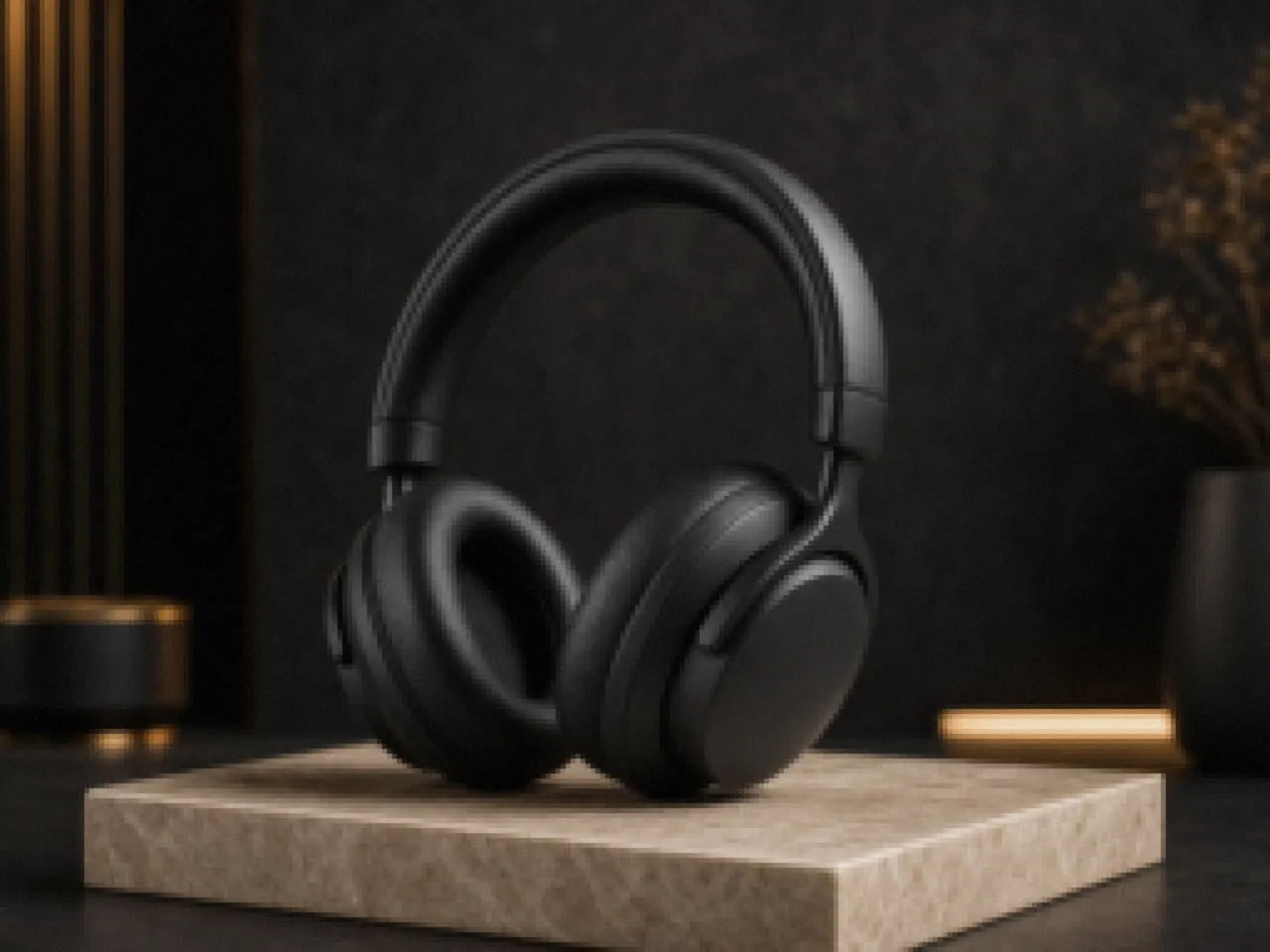
Upscaled result
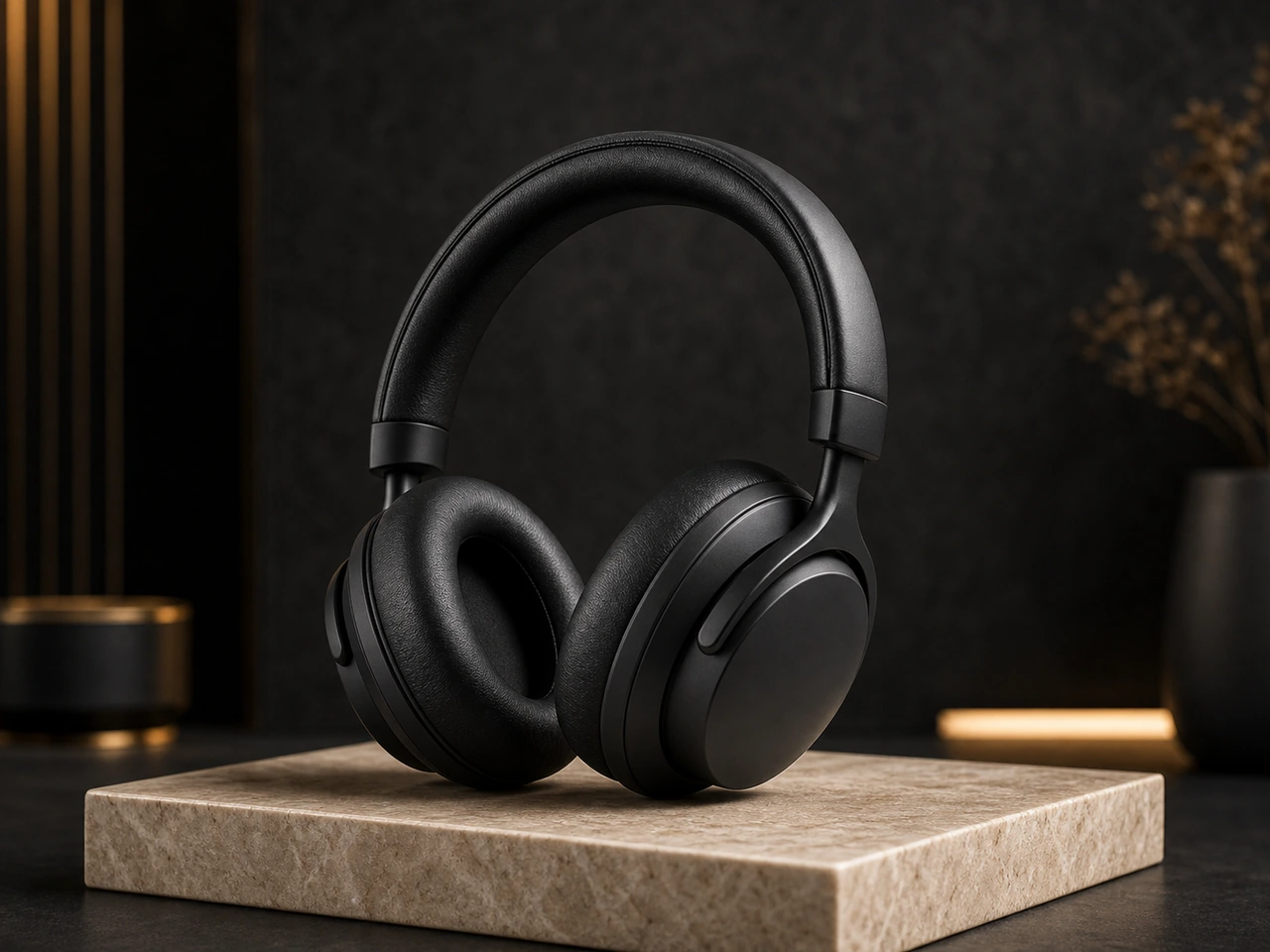
Product Photo Upscale
Clean up a soft product shot so the material, outline, and listing visual feel sharper.
A good image upscaler should improve clarity while keeping product shape and color stable.
AI image upscaler for sharper source images
Use the Image 2 AI upscaling tool to improve soft, noisy, or compressed images while keeping the original subject, layout, colors, and important details stable.
The image upscaler is built for practical cleanup: product photos, portraits, social posts, thumbnails, and marketing visuals that need a clearer finish before publishing.
Upload one source image, choose the focused tool mode, then generate a cleaner AI-edited result.
Source image
RequiredMode
Improve clarity and detail while keeping the original look natural.
0/800
Showcase
Review example outputs from the image upscaler workflow before running your own file.
Original image
Upscaled result
Clean up a soft product shot so the material, outline, and listing visual feel sharper.
Original image
Upscaled result
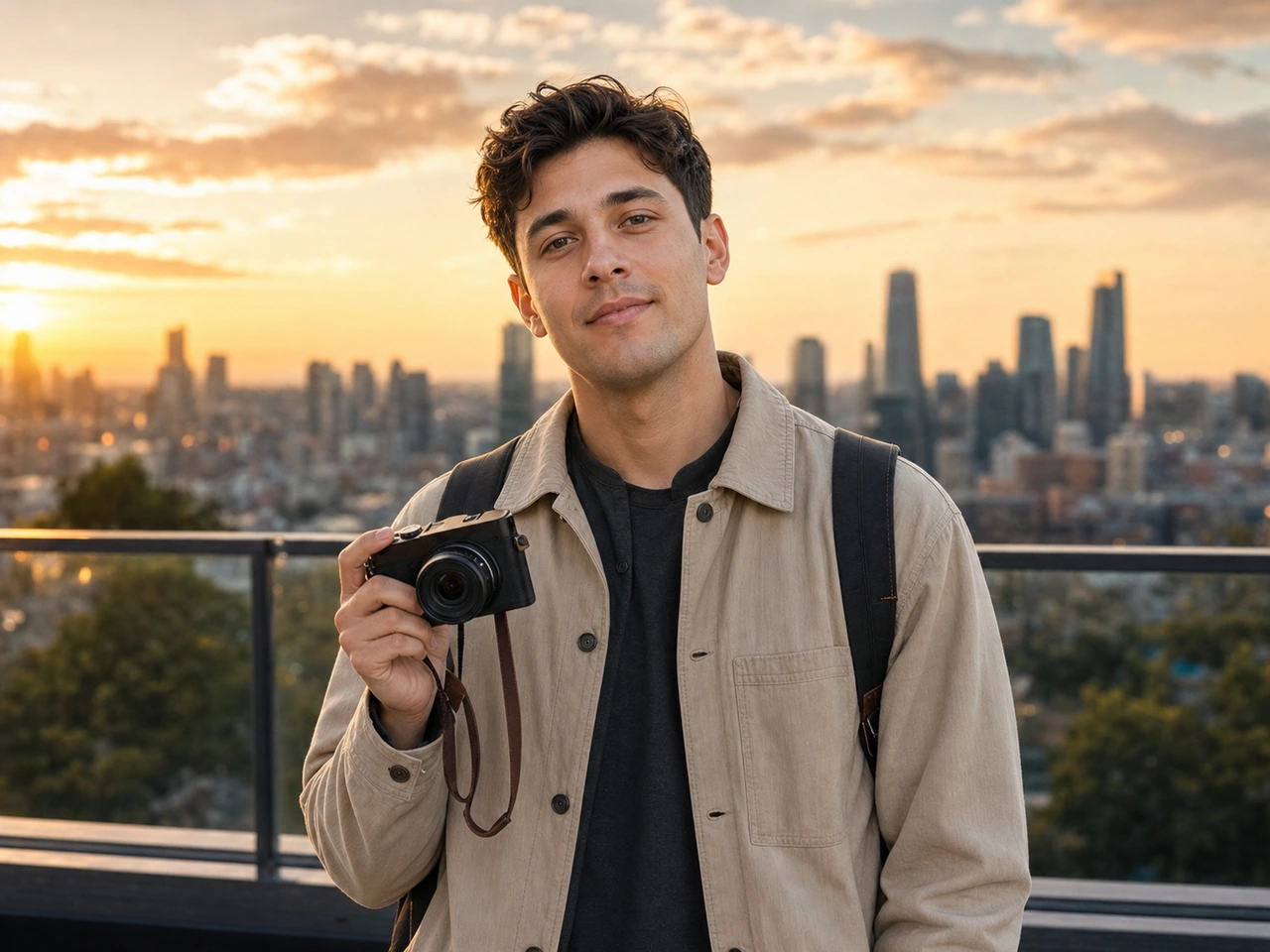
Turn a low-detail social image into a cleaner asset for posts, thumbnails, and ads.
Original image
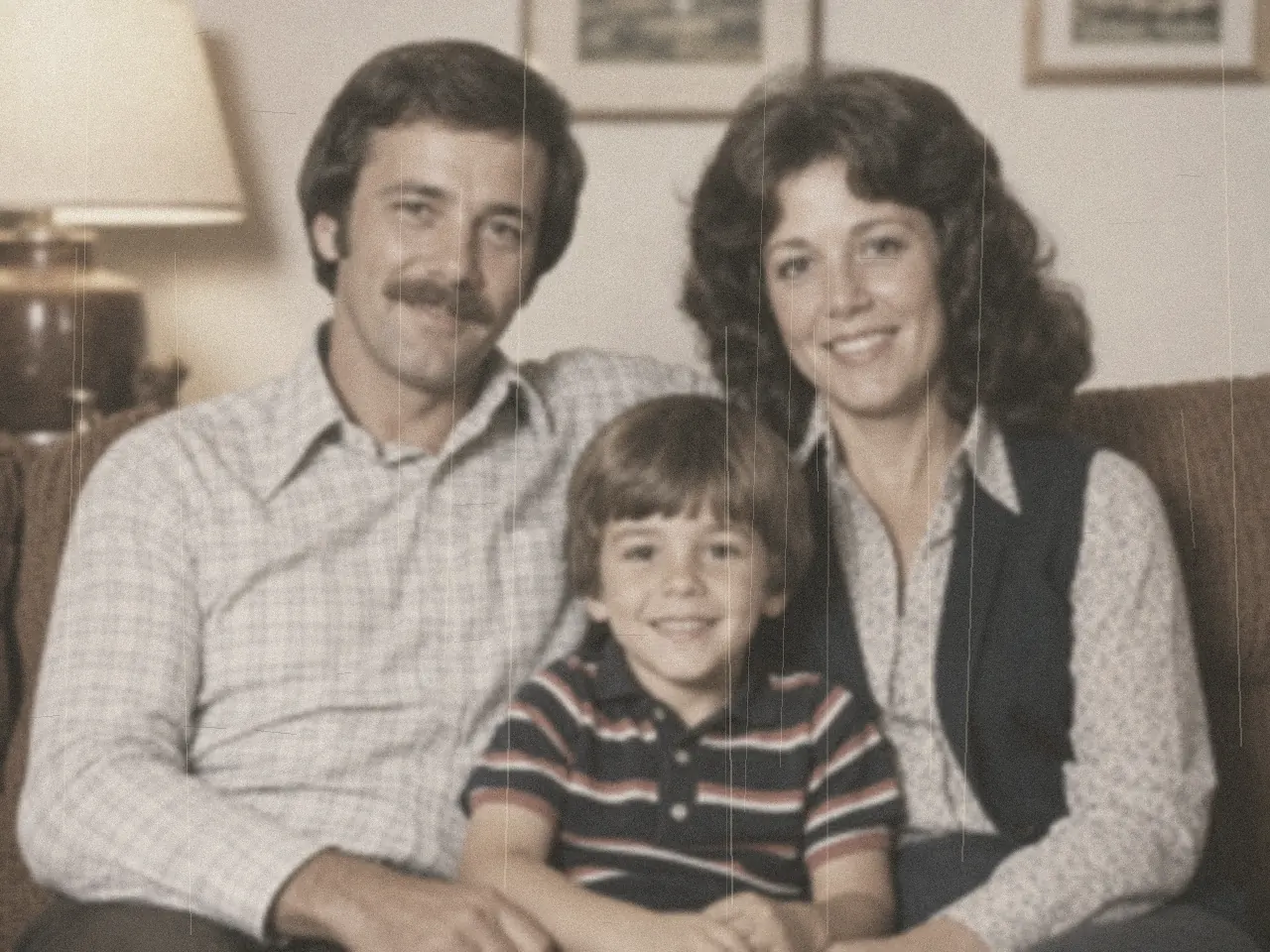
Upscaled result
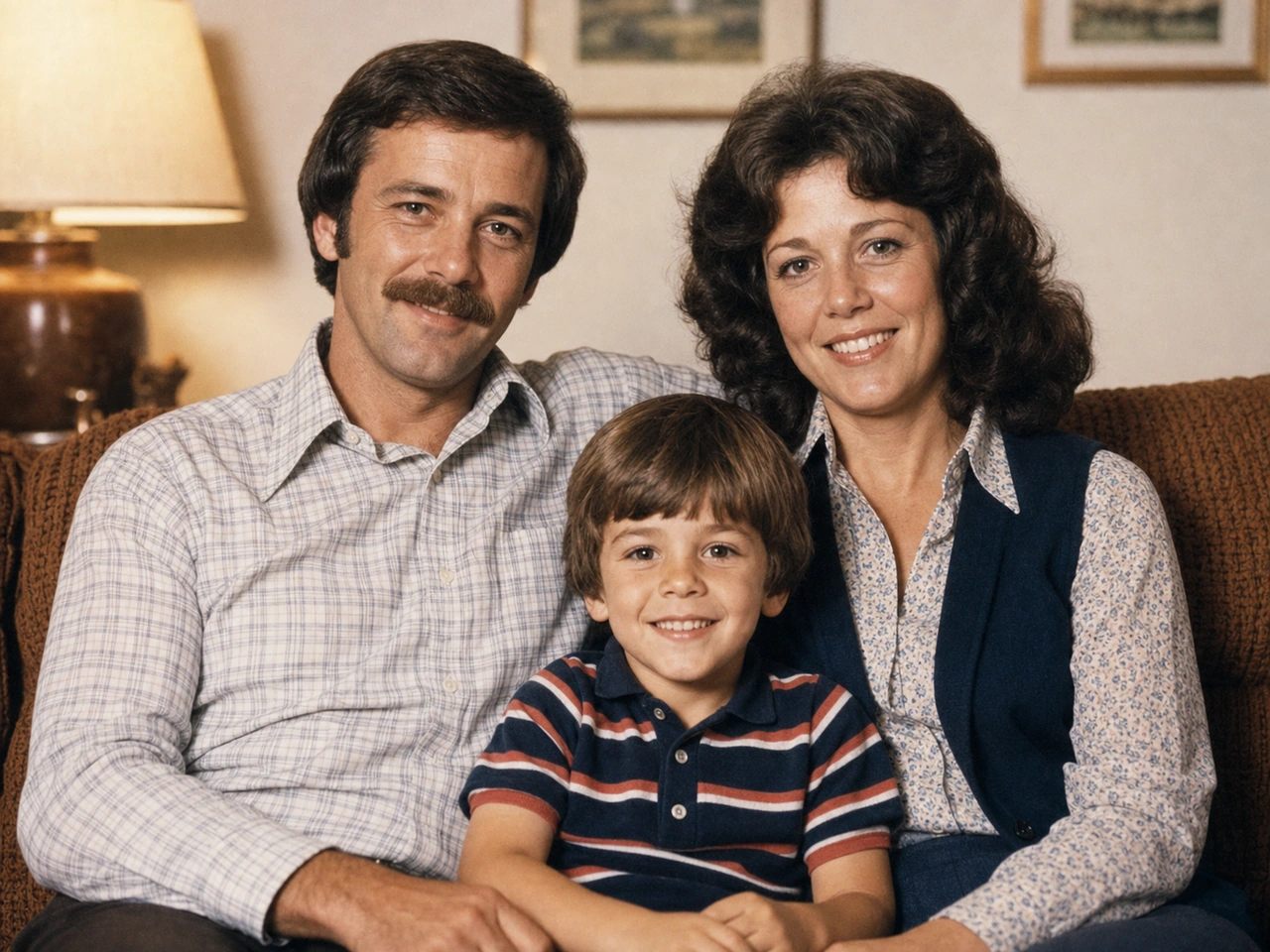
Recover more usable detail from an older or compressed photo without rebuilding the scene.
A good enhancement tool should do more than make a file larger. Most creators start with images that are slightly soft, compressed by social platforms, exported from an old design, or captured in imperfect lighting. The Image 2 image upscaler is designed for that everyday problem: take one source image, protect the important subject, and create a cleaner version that looks ready for a page, ad, listing, or profile. Instead of asking you to manage a complicated editor, the image upscaler gives you a source upload, a strength choice, a short instruction box, and a visible credit cost.
The image upscaler works best when the source already has a clear subject and a useful composition. Product photos can gain cleaner edges, better material texture, and more readable surface detail. Portraits can look less muddy while keeping natural skin and facial identity. Posters, thumbnails, and social graphics can become sharper without losing the original layout. That is the practical value of an image upscaler: it improves the image you already chose instead of forcing you to start from a blank prompt.
When people search for an image upscaler, they usually want speed, but they also want control. A normal image upscaler can over-sharpen faces, invent strange texture, break small text, or make product edges look artificial. This image upscaler is tuned around preservation. The enhancement prompt asks the edit to keep the subject, composition, camera angle, brand colors, logos, product shape, and important text as stable as possible. You can also add a direct note such as “keep the label exactly black,” “preserve the face,” or “do not change the package shape.”
Balanced mode is the safest starting point for upscaling jobs. Natural mode is better when the image already looks good and only needs gentle cleanup. Strong mode is useful when the file is visibly noisy, soft, or compressed. The image upscaler does not promise a perfect scientific pixel enlargement; it is an AI enhancement workflow for clearer commercial images. That distinction matters, because the best results come from treating the tool as a cleanup assistant for real content rather than a magic repair button for unusable files.
The strongest image upscaler use cases are common production tasks. Ecommerce teams can improve product shots before uploading them to a marketplace or landing page. Founders can polish screenshots and app visuals before a launch post. Creators can sharpen thumbnails, profile images, course covers, and newsletter graphics. Agencies can rescue a client-supplied asset that is good enough in concept but not clean enough for final creative. In each case, the image upscaler helps the original image survive a more demanding channel.
For better image upscaler results, upload the highest-quality source you have, avoid tiny heavily cropped files, and describe the details that must stay unchanged. If small typography matters, mention it in the instruction box and inspect the result before publishing. If a first pass looks too intense, switch from Strong to Balanced or Natural. If the output needs a different creative direction, use the main image generator instead. The image upscaler page is intentionally narrow because narrow tools are easier to use: one source image, one enhancement goal, one result to compare.
Each public tool page keeps the real generator close to the product promise, so visitors can understand the capability and try it without hunting through the app.
The uploaded image stays the source of truth, so the edit focuses on clarity instead of changing the subject.
The default 1K enhancement costs 3 credits before any premium settings are selected.
Useful for marketplace photos, thumbnails, landing-page visuals, profile images, and rough drafts that need a cleaner finish.
Completed outputs appear in the session strip and can be opened, reviewed, or downloaded from the same workspace.
Use these starting points to match the page to concrete creation tasks.
Sharpen materials, improve edge definition, and reduce noisy lighting while keeping the product accurate.
Make a social thumbnail or poster draft cleaner without rebuilding the whole composition.
Improve a portrait or creator image while preserving face identity and natural texture.
Keep the workflow simple: describe the output, choose the model settings, run a draft, then refine the strongest direction.
Step 1
Use a JPG, PNG, or WebP source image that already contains the subject you want to preserve.
Step 2
Start with Balanced, then switch to Natural or Strong when the output needs a softer or sharper finish.
Step 3
Mention details to protect, such as logos, text, facial identity, product color, or material.
Step 4
Open the result, download it, or run another version with a tighter note.
Quick answers for choosing the right settings before generating.
The image upscaler creates a cleaner enhanced output from your source image. It is best for visual improvement, not a guaranteed pixel-perfect mathematical enlargement.
The image upscaler asks the edit to preserve important text and brand details, but AI image editing can still alter small typography. Review the result before using it commercially.
The default 1K image upscaler run costs 3 credits per generated image.
This focused image upscaler accepts one source image so the edit target stays clear. The main image generator can handle broader reference workflows.